

Object storage
Keep any file in folders with every version, share folders, turn files into tables, import new files automatically, and use the trash.
keeps any file, with every version. Files sit in folders, and each folder decides who can see it.
Files or tables?
Use Object Storage for files you keep as they are: PDFs, images, the original export a table came from. Use for data you filter, query with and change row by row. A spreadsheet, CSV or Parquet file becomes a table in one step, and a folder can load every new file into a table on its own.
Before you start
- A new folder is seen only by you and workspace admins until you share it.
- Your access to a folder is Can see, Can add and change or Can manage.
- Only owners and admins can delete folders, restore from the trash or delete for good.
Make a folder and add files
Make a folder
Select New folder, enter a Folder name, and select Create.
Add files
Drop files on the folder, or select Upload a folder to bring a whole folder from your computer.
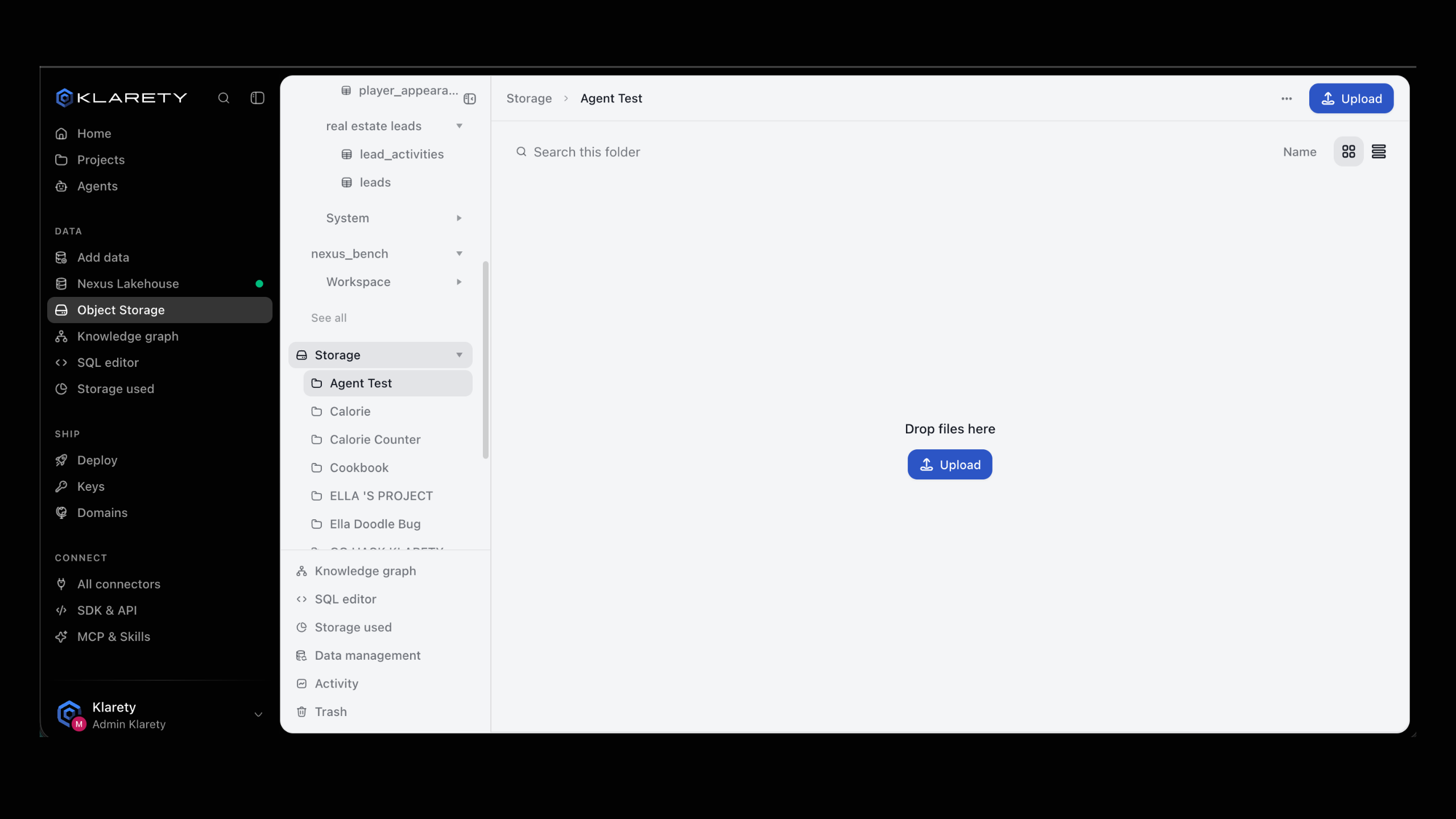
In a folder, sort by Name, Newest or Largest, switch between Grid and List, or Search this folder. The Object Storage search box covers every file you can open; Type narrows it to images, documents, table files, recordings, archives or text.
from klarety import Nexus

with Nexus.connect() as nx:
    reports = nx.folders.create("reports")
    year = reports.mkdir("2026")
    year.upload("q3-summary.pdf")

    for entry in year.list():
        print(entry["kind"], entry["name"])

    for found in nx.files.find("summary"):
        print(found)
nx.folders.at("reports/2026") opens a folder by its path. folder.download("./local") saves every file directly in a folder to your machine.
Work with a file
Open a file's menu to Download, Open, Rename, Move to another folder or Delete it. An open file shows a preview, when and through what it was uploaded (the web, a project, a live app or the SDK), its tags, and Earlier versions. Restore makes an earlier version current again.
To download a whole folder, open More and choose Download as zip.
nx.files.versions(file_id)
nx.files.restore_version(file_id, 2)
nx.files.move(file_id, nx.folders.at("archive"))
data = nx.files.open(file_id)
nx.files.download(file_id, "./q3-summary.pdf")
open() reads the whole file into memory; for a large file use download(), which streams it to disk.
Make a table from a file
Open the menu of a table file (CSV, Excel, Parquet, JSON and others) and choose Make a table. Name the table and select Import. The file stays in its folder. See Add data for the file types and options.
run = nx.files.load([file_id], into="customers")
run = nx.folders.at("exports/customers").load(into="customers", mode="upsert", key=["customer_id"])
files.load() loads the files you name; folder.load() loads every file directly in the folder. Several files with the same columns land as one change.
Import new files automatically
A folder can load every new file into a table, once each. This suits a daily export.
Open the folder
Open the folder, select More, and choose Import new files automatically.
Choose the table
Enter the Schema and the Table, then choose what happens with Each new file: Add rows or Replace rows.
Turn it on
Select Turn on. The folder now says where new files go. Select Stop to end it.
from klarety import Nexus

with Nexus.connect() as nx:
    inbox = nx.folders.at("exports/daily")
    watch = inbox.watch(into="daily_revenue", mode="upsert", key=["day"])
    print(inbox.watches())
    inbox.unwatch(watch["watch_id"])
mode takes the same values as a load: auto, upsert or replace.
Share a folder
Open who can see it
In the folder, select More, then Who can see this.
Give access
Select Give access. Under Who, choose a Person, a Project or Everyone in the workspace, choose What they can do, and select Add.
The levels are Can see, Can add and change and Can manage.
A folder inside another follows its parent's access. Give this folder its own access starts from exactly who could see it, and you remove people from there. Follow the folder above instead returns it to the parent's access. If you cannot change access, ask someone who manages the folder.
folder = nx.folders.at("reports")
folder.grant("person", "USER_ID", "read")
folder.grant("project", "PROJECT_ID", "write")
folder.grant("org", "org", "read")
print(folder.access())
folder.revoke("person", "USER_ID")
The levels are read, write and manage. For the whole workspace, the kind and the id are both org. own_access() and follow_parent() switch a folder between its own access and its parent's.
Trash
Deleted folders and files stay in the trash for a while, then are removed for good. How long depends on your plan; Data management shows it under Deleted items restorable.
- Deleting a folder takes everything inside, and that link it lose it too. Restoring the folder brings both back.
- A project's own folder cannot be deleted on its own. It goes when the project is deleted.
- Only owners and admins can Restore, Delete forever or Empty trash.
Cannot be undone
Delete forever and Empty trash remove every version now. Nothing can bring them back.
Open DataObject Storage and select Trash.
print(nx.folders.trash())
nx.files.restore(file_id)
nx.folders(folder_id).restore()
Where to go next
- Add data: turn a file into a table.
- Data access: access to schemas, tables and connections.
- Undo and restore: put back changes to tables.