

Undo and restore
Go back to an earlier version of a table, put back what one source changed, bring back a copy of a table as it was at a moment, and restore deleted tables.
keeps every change to every table, so a bad load, AI test rows or a buggy live app can all be put back. There are four ways, from the smallest to the widest.
| You want to | Use | Who |
|---|---|---|
| Undo everything in one table after a point | Go back to this in the table's History | People who can change the table |
| Undo only what one source changed, keeping everyone else's work | Put back in Data management | Owners and admins |
| Undo what AI or your live app changed in a project | Undo in the project's Data tab | The project's owner, owners and admins |
| See a table as it was, without changing it | Bring back a copy in Data management | Owners and admins |
Owners and admins
Put back and Bring back a copy in Data management are shown only to owners and admins.
How long changes are kept
Your plan decides both. In Data management (Data sidebar), the Safety panel shows Changes kept and Deleted items restorable, in days, and when the platform last checked that every file reads back.
Go back to an earlier version of a table
Use this when a whole load or edit was wrong and nothing after it needs keeping.
Open the table's history
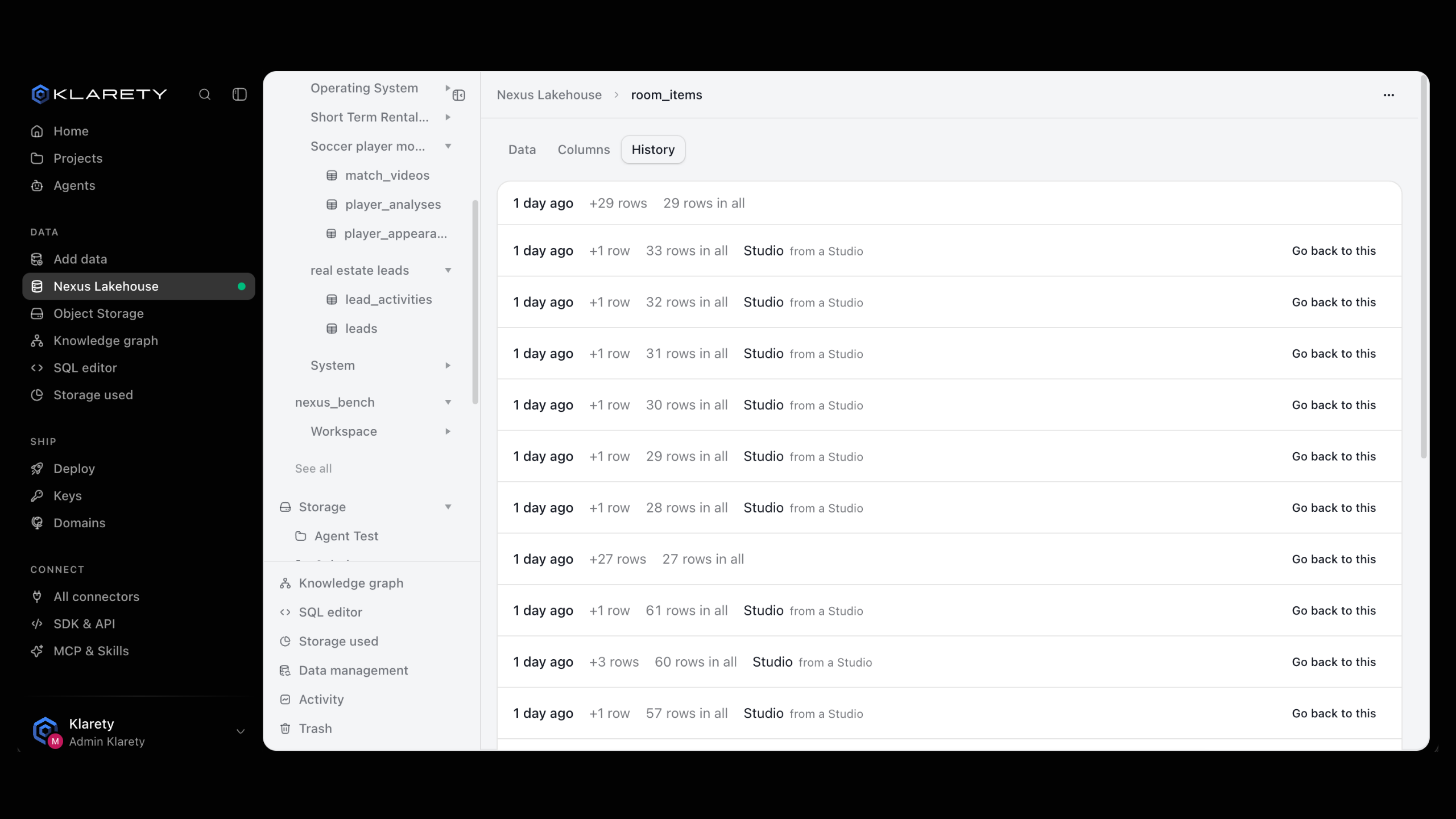
In Nexus Lakehouse, open the table and select the History tab.
Pick the version
Find the last good version. Each shows what changed, who and how.
Go back
Select Go back to this, then Go back to confirm. Every change after it is undone.
from klarety import Nexus

with Nexus.connect() as nx:
    history = nx.tables.snapshots("orders")
    print(history)
    nx.tables.rollback("orders", snapshot_id=1234567890)
Use a snapshot_id from snapshots(). Going back past an erasure is refused, since it would bring back rows promised to be gone.
Put back what one source changed
Use this when several sources write to the same tables and only one went wrong. It takes back that source's changes value by value and leaves everyone else's work alone.
Open Data management
In Data, open Data management from the sidebar.
Find the change
Under What changed, pick a table to see the last 7 days: the Day, Who, Through (for example Edited rows, SQL or A file load), and how many rows were Added and Changed. Select Put back on the row that went wrong.
Choose how wide
Under Put back, check Whose changes and choose When: The last hour, The last day or The last 7 days.
Preview
Select See what would change for how many rows would be put back, how many added rows taken out, and in how many tables. Rows someone else changed since stay as they are.
Put it back
Select Put back and confirm, or Keep as is to leave everything unchanged. The Activity panel lists every restore that ran.
Flagged by us marks rows written from a project's that look like test entries, so you can spot them before they reach a report.
Nothing changes until you apply. author is one of studio, app, web, sdk, mcp or watch.
import time
from datetime import UTC, datetime, timedelta

from klarety import Nexus

with Nexus.connect() as nx:
    now = datetime.now(UTC)
    preview = nx.restores.preview(
        since=now - timedelta(hours=6),
        until=now,
        author="app",
        tables=["orders"],
    )
    restore_id = preview["restore_id"]

    while nx.restores.get(restore_id)["state"] == "previewing":
        time.sleep(2)

    ready = nx.restores.get(restore_id)
    print(ready["tables"])
    if ready["state"] == "previewed":
        nx.restores.apply(restore_id)
A preview is worked out in the background: wait for state to be previewed, read what it would change, then apply. After apply the state moves through restoring to restored. A preview not answered in time ends as expired; preview it again.
Call decline(restore_id) to drop a preview instead. restores.list() shows what each restore did, newest first. These calls need an owner's or admin's key.
Undo what a project changed
Open a project and its Data tab. What changed this week shows changes Changed by AI and Changed by your live app. Select Undo, review the rows that would change, and select Undo it. When it is done you see It's back the way it was.
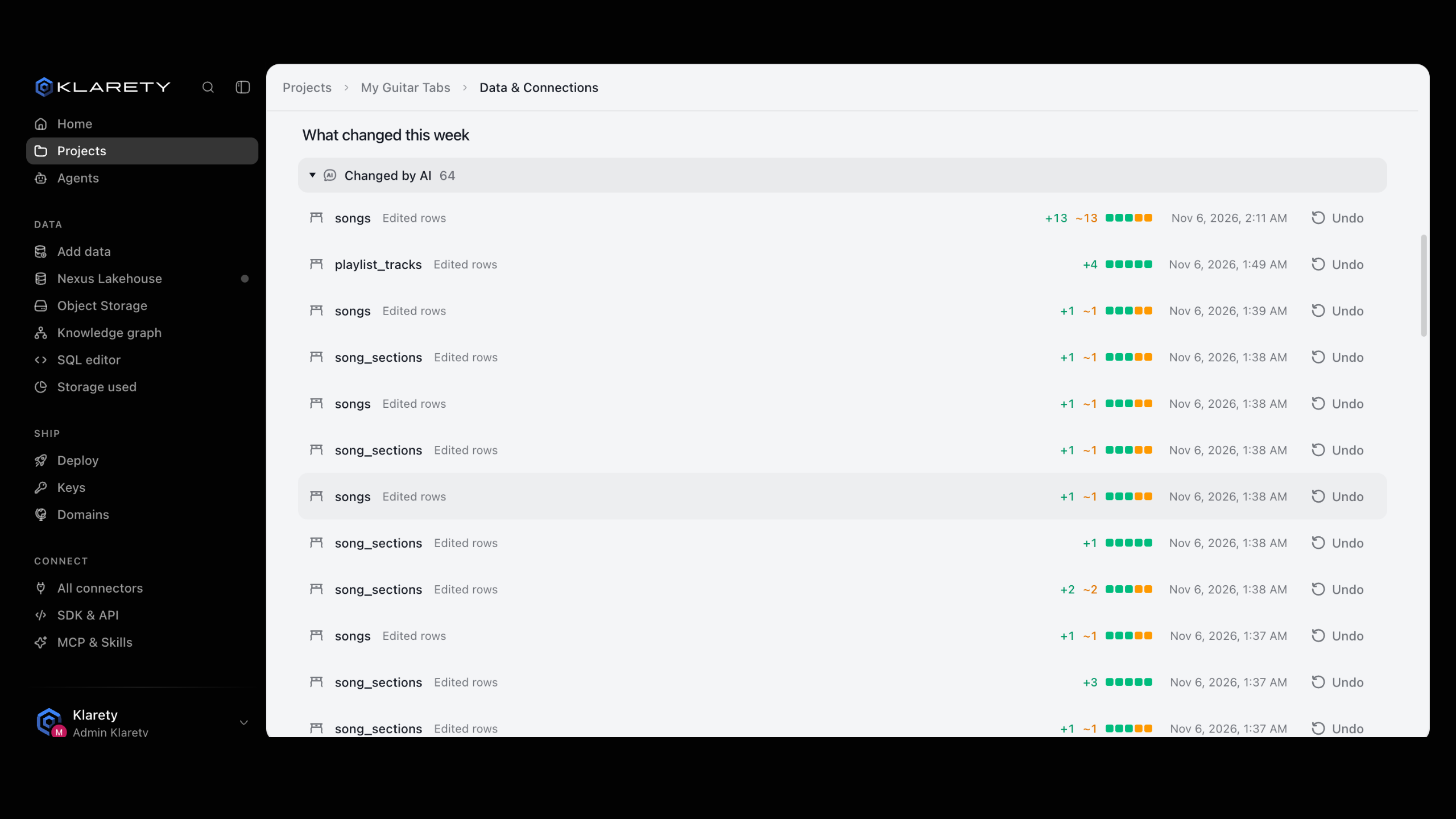
From code, use nx.restores.preview() with author="studio" for the AI or author="app" for the live app, as shown above.
Bring back a copy of a table as it was
Use this to look at old data, compare with today, or recover a deleted table, without touching the live table.
Open the copy form
In Data management, under Put back, find Bring back a copy of a table as it was at a moment.
Choose the table and the moment
Pick a table and enter As it was at, in UTC.
Preview and confirm
Select Preview the copy, then Put back. The copy appears as a new table; the original does not change.
import time
from datetime import UTC, datetime

from klarety import Nexus

with Nexus.connect() as nx:
    preview = nx.restores.copy(["orders"], at=datetime(2026, 10, 1, 12, 0, tzinfo=UTC))
    restore_id = preview["restore_id"]
    while nx.restores.get(restore_id)["state"] == "previewing":
        time.sleep(2)
    nx.restores.apply(restore_id)
A copy reaches back as far as changes are kept, even for a table deleted since.
Restore a deleted table
for table in nx.tables.deleted("default"):
    print(table)
nx.tables.restore("orders", schema="default")
A deleted table can be restored until your plan's window for deleted items ends.
A deleted table can be restored until your plan's window for deleted items ends, by a developer with the (see the developer view). Deleted folders and files are restored from the trash, see Object storage.
What cannot be undone
Check before you use these: there is no way back.
- Erasing rows.
nx.tables.erase()removes the data itself, so it can be proved gone. There is no undo, and going back to a version before it is refused. - Delete forever and Empty trash in Object Storage.
- Anything older than your plan keeps.
Where to go next
- Work with tables: read a table's history.
- Object storage: the trash for folders and files.
- Data access: keep someone's changes in their own copy.