

Work with tables
Browse and filter rows, edit them by hand, describe columns, add data checks and read a table's history.
Every in has a page showing its rows, its columns and every change made to it.
Before you start
- You see the tables you have access to. Owners and admins see them all.
- Editing rows needs access to change the table's data. If an action is refused, ask an owner or admin. See Data access.
- Some tables are kept by Klarety itself. Their page says Klarety keeps this table itself, so it cannot be changed.
Find a table
Go to Data and open Nexus Lakehouse. The list shows each table's Name, and number of Columns; type in Find a table to narrow it. A table's page has three tabs: Data, Columns and History.
The menu beside a table also offers Query in SQL editor or copying its name.
from klarety import Nexus

with Nexus.connect() as nx:
    for table in nx.tables.list("default", search="order"):
        print(table)

    about = nx.tables.describe("orders", schema="default")
    print(about)
tables.list() reads every page of results. made_by="org" keeps the tables made outside any project, and made_by="system" the ones Klarety keeps.
Browse and filter rows
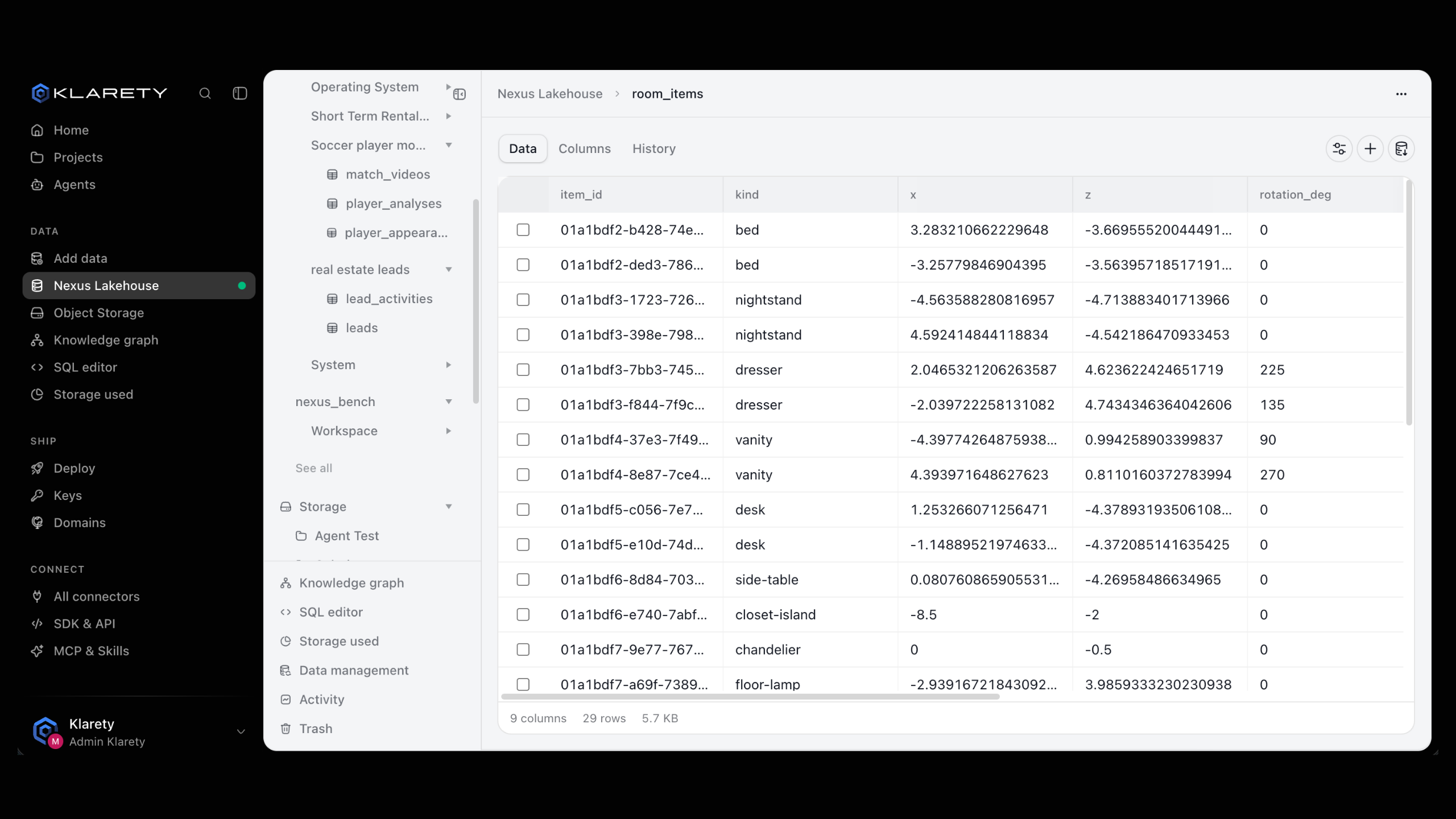
The Data tab shows the rows. A large table shows only its first rows, and says so.
Select Filter rows, pick a Column, a Condition and a Value, then Apply. The conditions are is, is not, contains, more than, less than, is empty and is not empty. Each filter is a removable chip; Clear removes them all.
tables.rows() reads every row, a page at a time. Each filter is written column:op:value:
from klarety import Nexus

with Nexus.connect() as nx:
    for row in nx.tables.rows(
        "orders",
        where=["country:eq:CO"],
        order_by="ordered_at",
        descending=True,
    ):
        print(row)
To fetch many rows by key in one read, use in: where=["order_id:in:1,2,3"].
Edit rows by hand
For many rows, load a file with Update rows by key instead (see Add data).
Change what you need
On the Data tab, edit a cell, select Add a row, or select rows and choose Delete.
Review the changes
The bar at the bottom counts your pending changes. Select Discard to drop them.
Save
Select Save. All changes are saved together as one new version.
from klarety import Nexus
from klarety.errors import ConflictError

with Nexus.connect() as nx:
    try:
        nx.tables.edit_rows(
            "orders",
            updated=[{"row": {"order_id": 3}, "values": {"amount": "75.00"}}],
            added=[{"order_id": 9, "customer": "Lucía", "country": "CO", "amount": "40.00"}],
            deleted=[{"order_id": 7}],
        )
    except ConflictError as changed:
        print("Someone changed these rows first:", changed)
Values are given as text. One call takes at most 500 changes, all saved together. Each value in row must still match what is stored, or nothing is saved and ConflictError names each changed row: read again, then retry. After a timeout, resend with the same write_id; it is never applied twice.
Describe columns
The Columns tab lists every column with its type. A column that identifies a row is marked key, and Linked tables shows which columns match columns in other tables. Add description writes one line about a column, shown to everyone who reads the table.
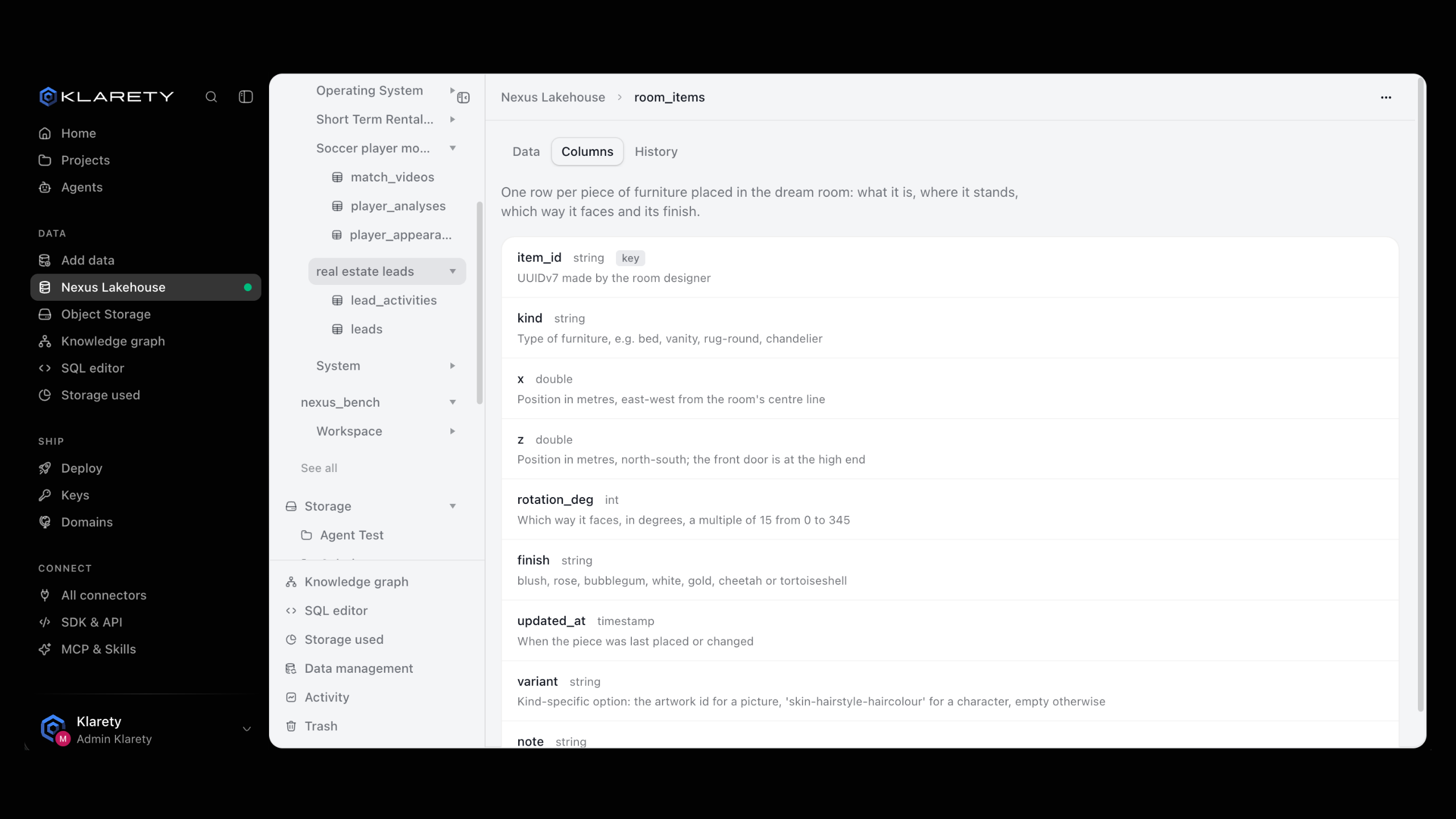
nx.tables.set_column_doc("orders", "amount", "Order total in Colombian pesos, tax included")An empty description clears it.
Add data checks
A data check is a rule each loaded row must meet. Failing rows are set aside and the rest load, so a bad export cannot fill a table with broken rows.
| Rule in the app | rule in code | Example |
|---|---|---|
| is never empty | not_null | customer is never empty |
| is between | range | amount is between 0 and 10000000 |
| matches the pattern | pattern | country matches the pattern ^[A-Z]{2}$ |
| is one of | one_of | status is one of paid, refunded |
Open the checks
On the table's page, open More and choose Data checks.
Add a check
Choose a Column and a Rule, fill in the values, and select Add check.
Read the results
The panel shows how many rows recent loads wrote and set aside. Remove drops a check.
tables.expect() replaces the table's checks with the list you send. An empty list removes them all.
from klarety import Nexus

with Nexus.connect() as nx:
    nx.tables.expect(
        "orders",
        [
            {"column": "customer", "rule": "not_null"},
            {"column": "amount", "rule": "range", "minimum": 0},
            {"column": "status", "rule": "one_of", "values": ["paid", "refunded"]},
        ],
    )
    print(nx.tables.quality("orders"))
A write that breaks a rule raises TableRuleError, naming the rule. Fix the data rather than resending it unchanged.
See the history
The History tab lists every version, newest first: how many rows were added or that rows were updated, the total row count, who made the change (You, A teammate, Studio or An API key) and how it came in (via SDK, via agent, from a Studio or auto import). Select Show older to go further back.
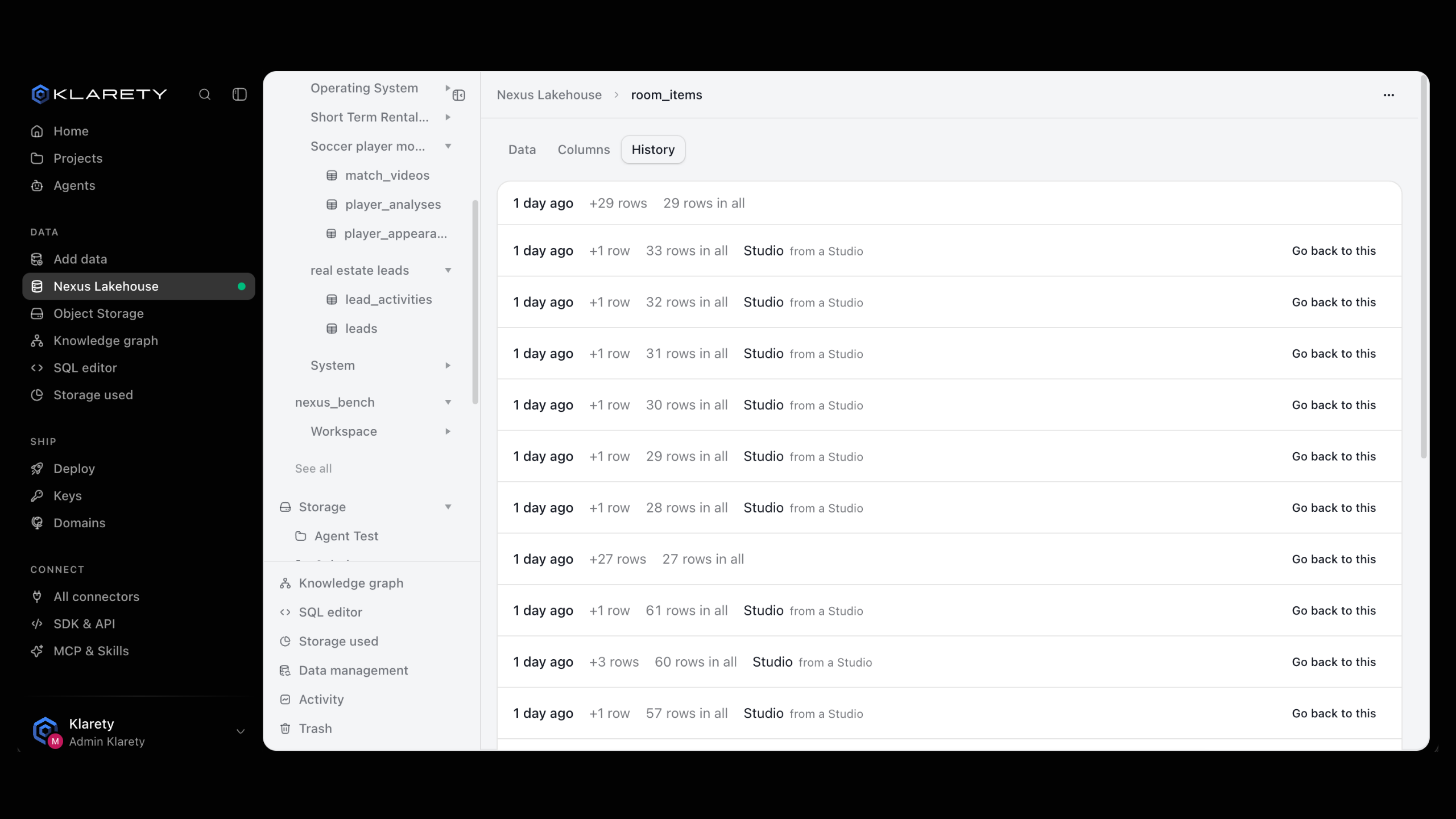
To undo, select Go back to this on a version.
Every change after that version is undone, including other people's. To undo only one source's changes, use Put back in Undo and restore.
history = nx.tables.snapshots("orders")
authors = nx.tables.authors("orders", days=7)
snapshots() lists the table's versions; authors() shows who added and changed rows, day by day.
Delete a table
Open More and choose Delete table. You can restore it for a while after.
nx.tables.delete("orders_old")
print(nx.tables.deleted())
nx.tables.restore("orders_old")
A deleted table can be restored for as long as your plan keeps deleted items.
Where to go next
- Query with SQL: question a table with Spark SQL.
- Undo and restore: go back to an earlier version.
- Knowledge graph: see how your tables link.