

Domains
Buy a domain with credits, connect one you already own, or reuse a connected one, and manage renewal.
Every app gets a free address that keeps working. For your own name, like app.yourcompany.com, buy a domain with , connect one you own, or add a name under a domain your already uses. HTTPS turns on by itself.
Before you start
Domain purchases are not refunded
Buying, and renewing, take credits at once. Check the name and ending before you buy.
- The should be deployed, or about to be: a domain opens the live version.
- You need to be able to change the project.
- Buying costs credits. Connecting a domain you own, or reusing a connected one, is free.
Where domains live
- A project's domains: open the project on Deploy, find Domains and select Manage to list every address it answers at.
- All your workspace's addresses: SettingsDomains lists every address for every project. Search by address or project, and filter by Free address, Connected, Bought or Not used by a project.
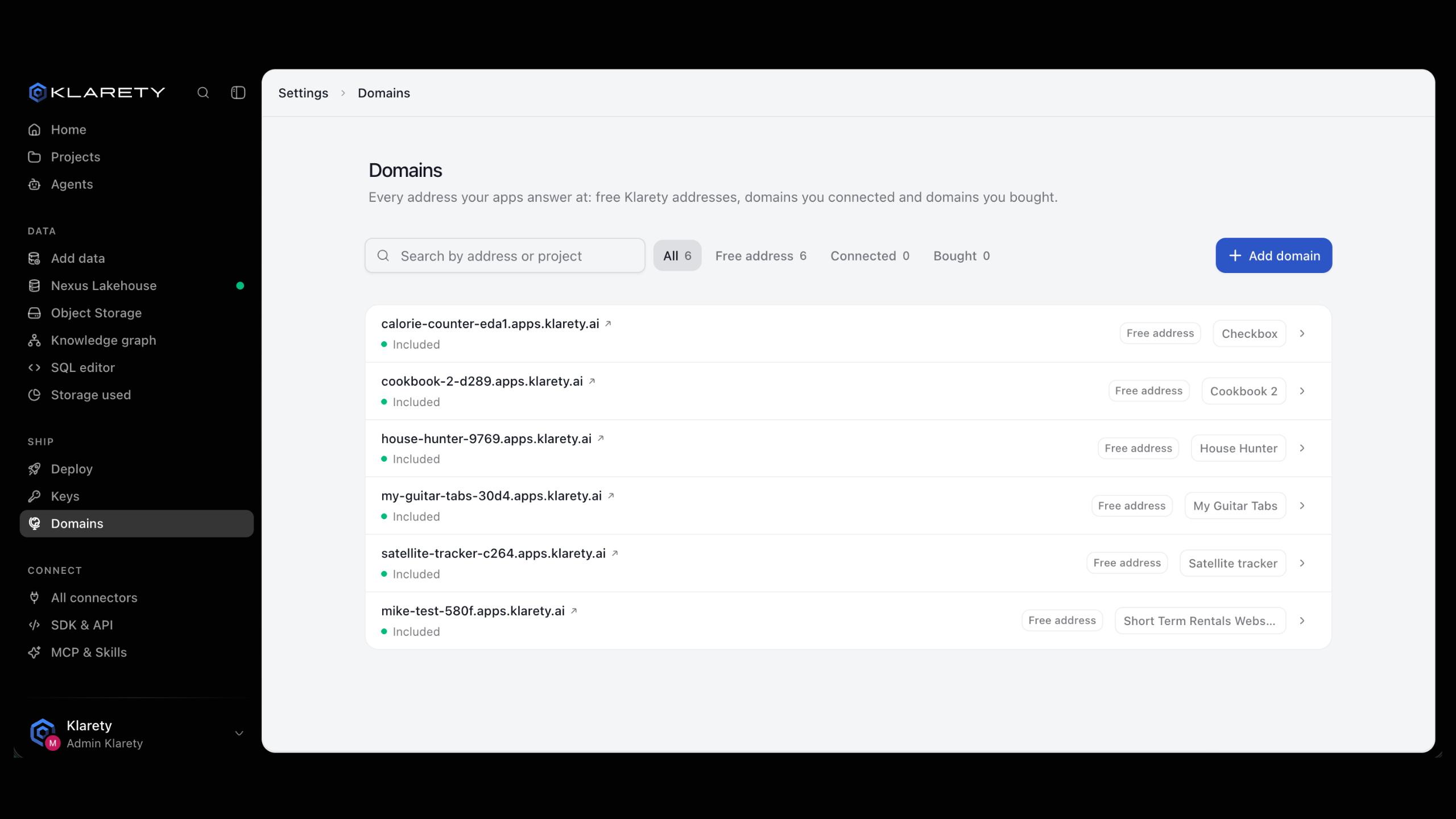
Add a domain
Select Add domain and choose Buy a new domain, Connect an external domain or Use a connected domain.
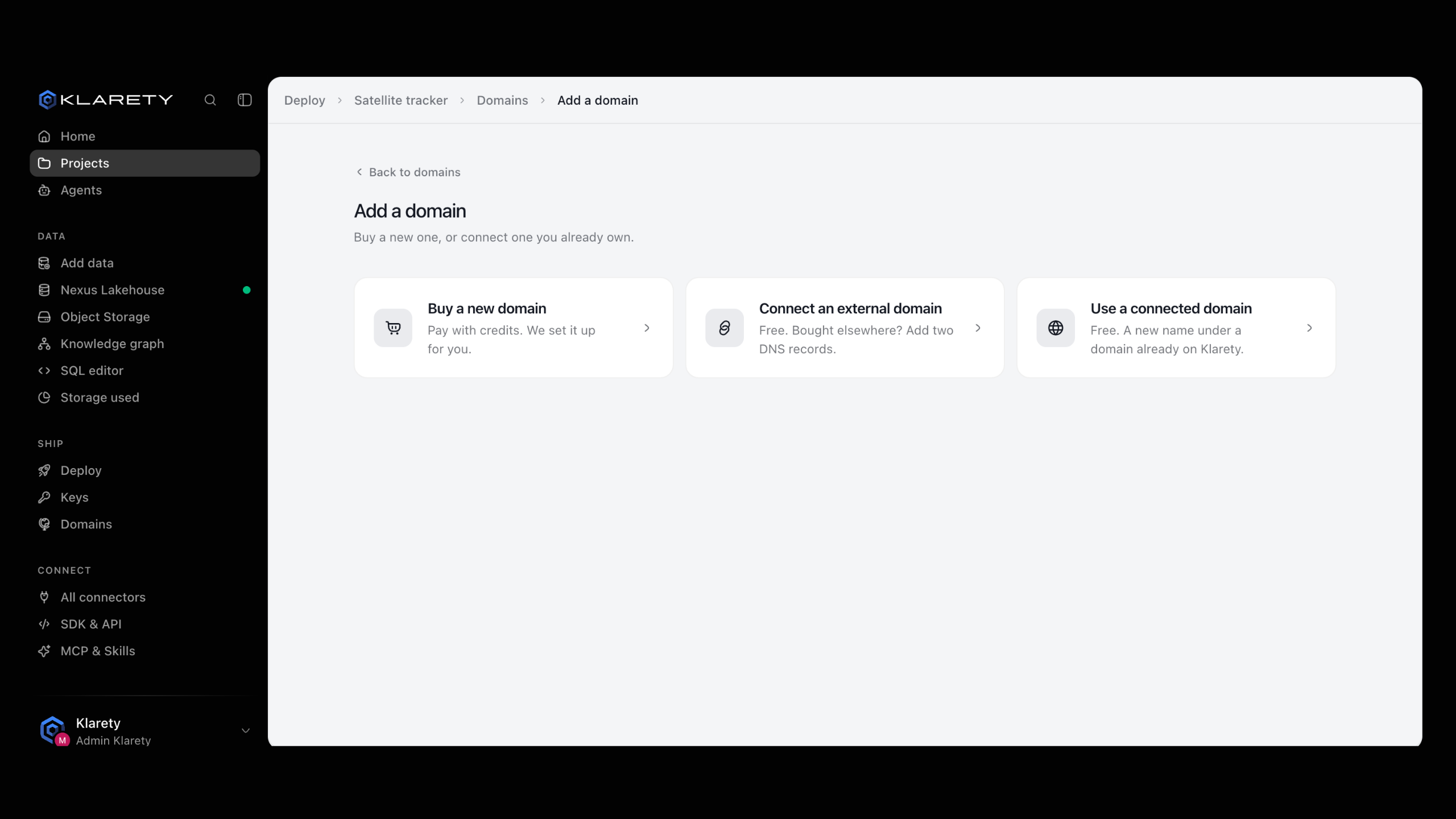
Buy a new domain
Pay with credits, and Klarety sets up its records for you.
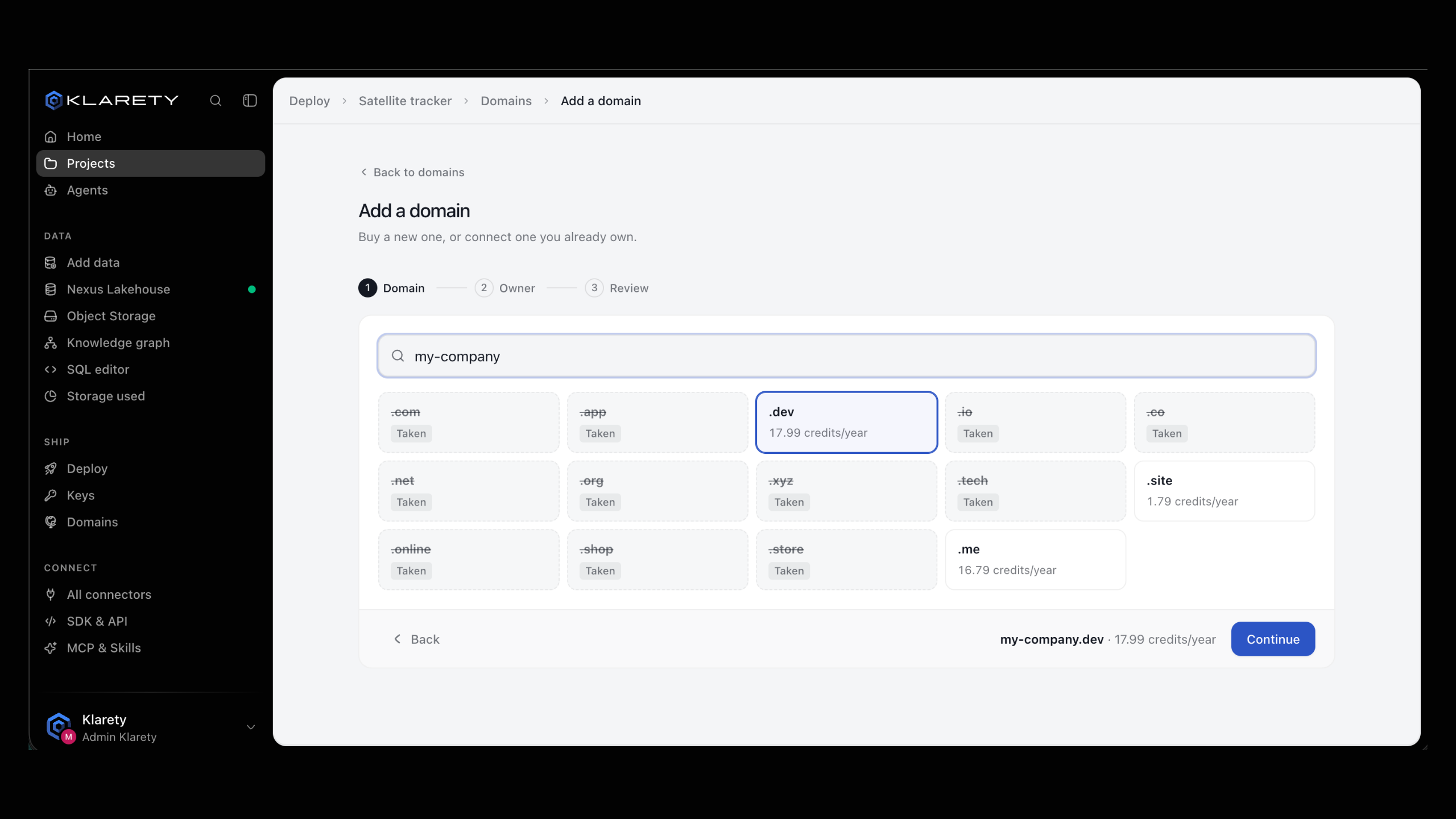
Find a name
Under Find a name, type the name you want (for example yourcompany), then Pick an ending. Each shows its yearly price in credits, or Taken. Select Continue.
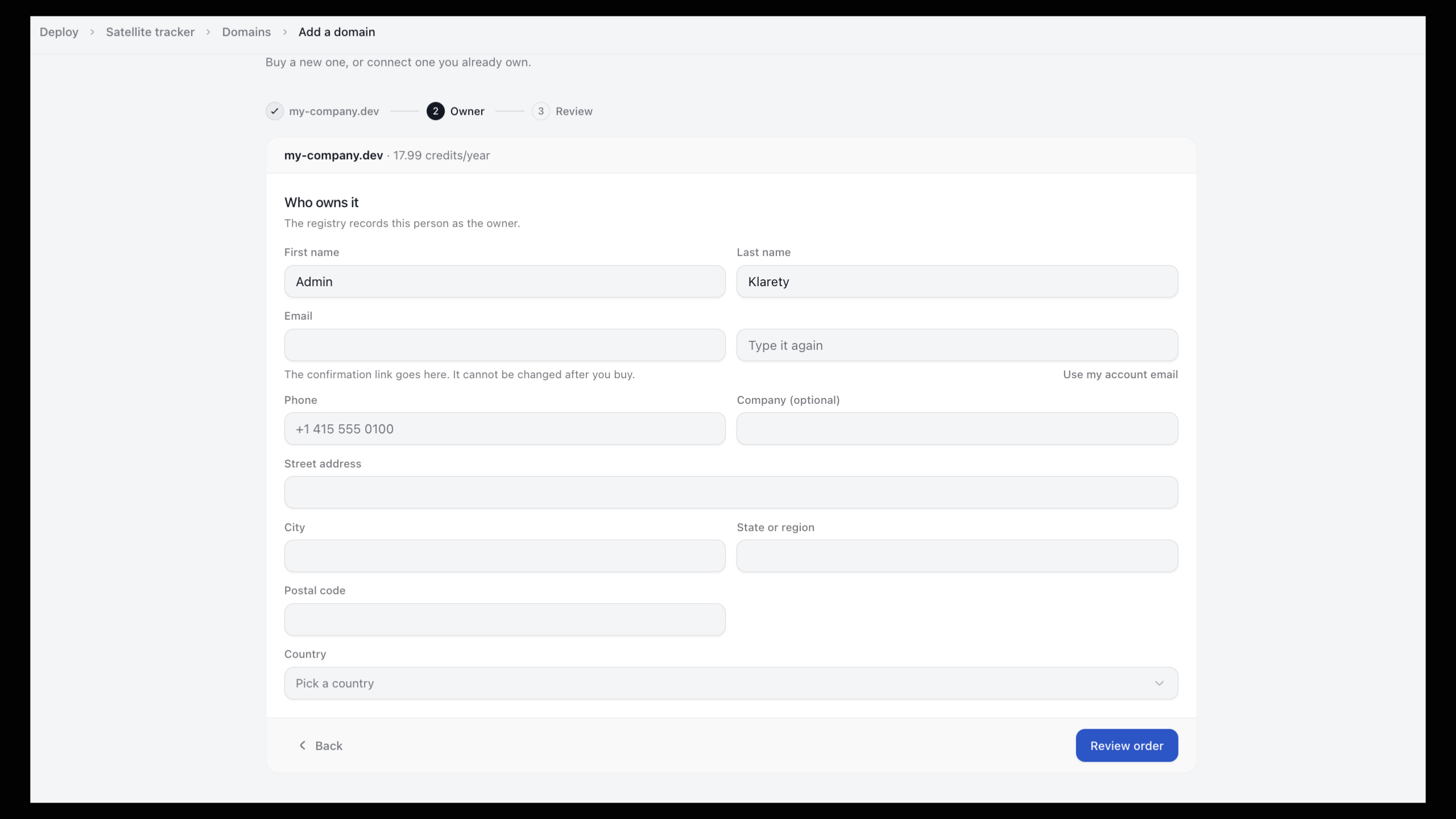
Say who owns it
Under Who owns it, fill in the owner's name, email, phone and address; the registry records them as owner. The email cannot be changed after you buy, and receives a confirmation link.
Review and buy
Review order shows the domain, the owner, the price for one year, that it Renews yearly, and your Balance after. Agree to the Terms of Service and select Buy for X credits.
Confirm the owner's email
Confirm within 15 days
Without the confirmation, the domain stops working 15 days after purchase.
Click the confirmation link sent to the owner's email.
The domain goes live by itself in a few minutes, HTTPS included.
Connect an external domain
Free, for a domain you own elsewhere. You add two DNS records where you manage it.
Type the domain
Choose Connect an external domain, type the address (for example app.yourcompany.com) and select Connect.
Add the records
The page shows two records, each with Type, Name and Value. Add both where you manage this domain's DNS. Some providers want only the part before your domain in Name.
Wait for it to go live
Klarety checks every few seconds; you can leave the page. The domain moves from Add the records below to Turning on HTTPS to Live, usually within minutes. Keep the records in place while the certificate is issued.
from klarety import Nexus

nx = Nexus.connect()
added = nx.projects.add_domain("PROJECT_ID", "app.yourcompany.com")
print(added)

for domain in nx.projects.domains("PROJECT_ID"):
    print(domain)
add_domain returns the two records to add at your DNS. The domain goes live once they are found.
Root domains
For a root domain like yourcompany.com, your DNS provider must allow a CNAME record at the root. If it does not, use www.yourcompany.com.
Use a connected domain
Free. Add a new name under a domain already on Klarety, for example api.yourcompany.com under yourcompany.com.
Choose Use a connected domain, pick one of Your domains, type a Name (for example api) and select Add. Leave it empty to use the domain itself, if no other app uses it. The app answers there at once.
Choose what a domain opens
When an app has several parts, each domain opens one. Answered by shows which (by default, the main part). To change it, select Change what it opens, pick the part and select Save.
nx.projects.point_domain("PROJECT_ID", "api.yourcompany.com", service="api")service=None points it back at the app's main part.
Renewal of a bought domain
A bought domain shows when it Renews from credits, or when it Expires if renewal is off.
- Renewal on: in its last 30 days, the domain renews for a year from your credits. If there are not enough credits, Klarety tries again each day until it expires.
- Turn off renewal: it will not renew. When it expires, your app stops answering there, and someone else may buy it.
- Renew a year now: renews for one more year straight away, paid from credits now and not refunded.
Move a domain to another registrar
Select Move to another registrar and confirm. Klarety unlocks it and shows a Transfer code for your new registrar. It stops renewing here. A domain bought in the last 60 days cannot move yet.
Remove or release a domain
- Remove takes a domain off a project; the app stops answering there at once. You can add it again later.
- When a project is deleted, its domains show Not used by any project. Select Use for this project to give one to another project, or Release to let it go: its certificate is dropped and anyone who owns it can add it again. A domain bought here stays bought and keeps its renewal.
If something goes wrong
- The domain stays on Add the records below: check both records match exactly, including Name as your provider expects. Some providers are slow to publish changes.
- "That does not look like a domain": use letters, digits, dashes and dots, like
app.yourcompany.com. - "Not enough credits for this domain": select Add credits, then buy.
- A bought domain stopped working: check that the owner clicked the confirmation link within 15 days.
- "Only people who can change this project can add a domain": ask the project's owner or an admin.