

Deploy an app
Put a project's app live, redeploy it, roll back to an earlier deploy or take it offline.
Open Deploy, set the project up once (the AI reads your code and chooses how each part runs), then select Deploy. Every deploy is kept, so you can roll back in one step, and Take offline stops the app and its cost at once.
A puts the app you built in a live at a web address anyone can open. Deploys run on AWS. Each is built from one commit and kept, so you always know which code is live.
Before you start
Deploying needs Pro
On the Free Trial, apps build and run in Studios. Compare plans in SettingsBilling (see Billing).
- Plan: Pro. On the Free Trial, the Deploy page offers Deploy with Pro.
- Role: you need to be able to change the project.
- Credits: a live app uses the workspace's credits while it runs, depending on its run settings.
- Live apps: your plan sets how many can be live at once, shown as Live apps "X of Y live". When all are in use, take one offline or buy more.
- Code: in a linked GitHub repository or in the project's .
Set the project up to deploy
The first time, the project needs a deploy setup: what runs, how it starts and how each part runs. The AI writes it for you.
Open Deploy
Go to Deploy, or open the project's Deploy tab. A project that is not ready says This project is not set up to deploy yet.
Ask AI to set it up
Optionally fill in What should this app run?, then select Set this project up to deploy. The AI reads your repository and picks the cheapest way to run each part.
Check the parts
Settings lists each part with its run setting, memory, CPU and the most it can cost an hour.
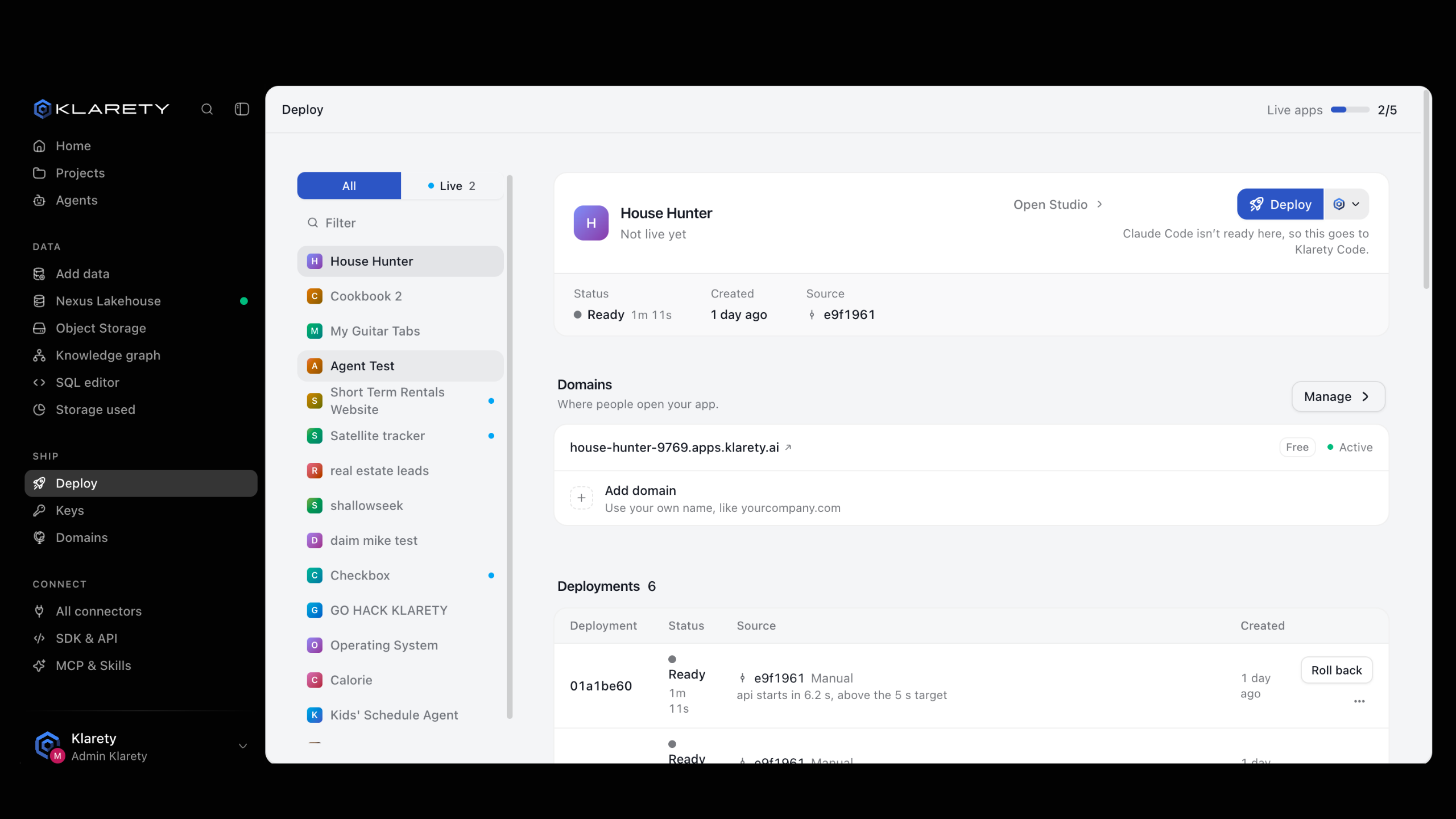
Deploy
Select Deploy
On the project's card on the Deploy page, select Deploy.
- With a linked GitHub repository, Klarety builds the latest commit on the production branch.
- Without a repository, you choose which AI in the Studio deploys the latest commit. Because an AI asked, the deploy waits for a person to approve it (see Approvals).
Follow the build
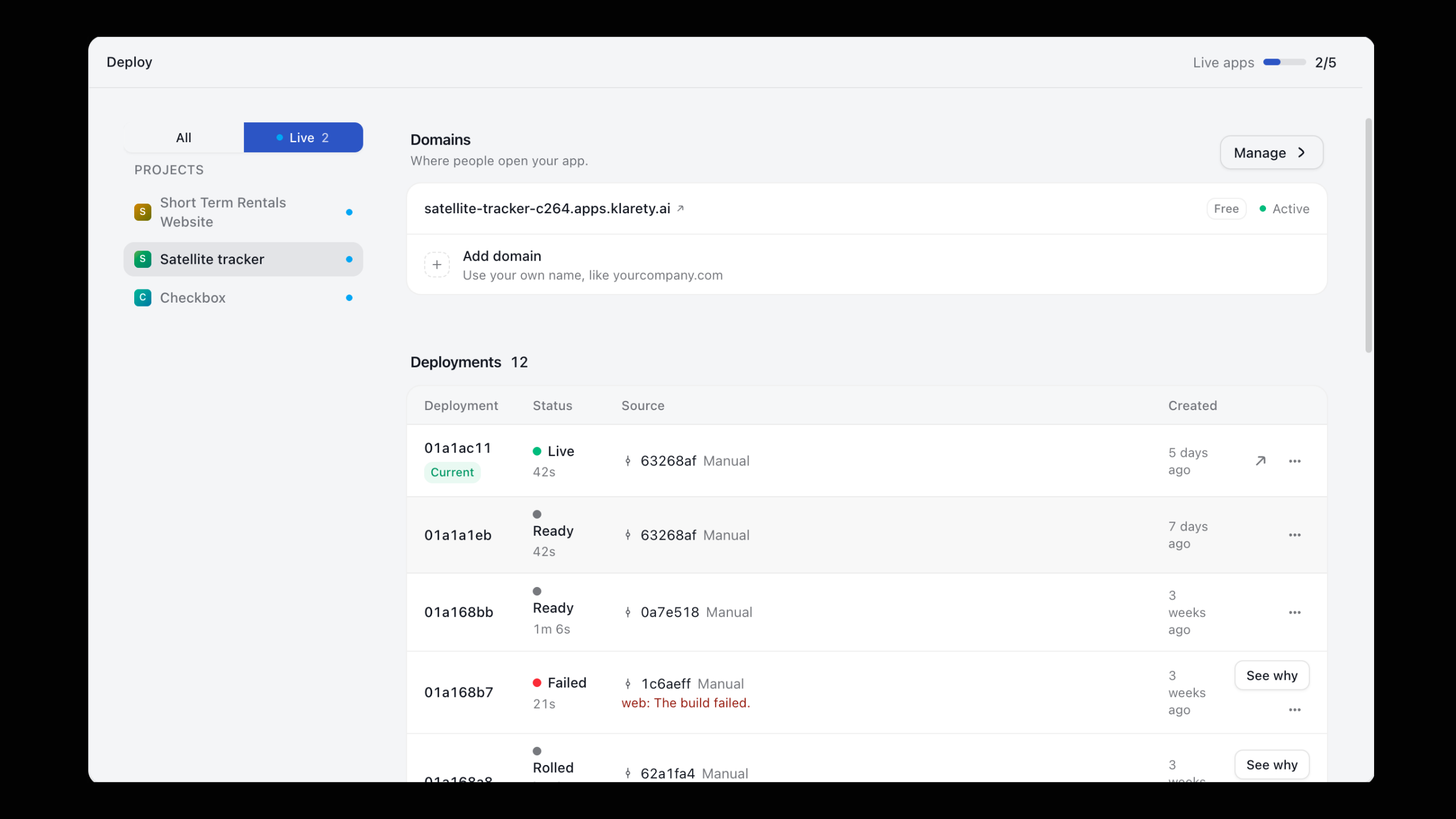
The deploy appears under Deployments and moves through Queued, Building and Live. Each row shows the commit, the source (Git push, Manual or Credits added), when it was created and how long it took.
Open the app
Select Visit. The app answers at its free address, and at any domain you added.
With a linked repository, every push to the production branch deploys by itself.
klarety deploy deploys the project. With a linked GitHub repository it builds the tracked branch's latest commit. Without one, it sends the commit checked out in the current folder: only what is committed, never uncommitted or ignored files.
klarety deploy --project PROJECT_ID{
"deploy_id": "..."
}Run inside a Studio, the deploy is an AI's request: it raises AwaitingApprovalError and waits for a person on the Deploy page. Do not call it again; tell the person. Use deploy_commit("PROJECT_ID", repo=".") for a project with no linked repository, and deploys("PROJECT_ID") to list every deploy.
Redeploy
On a live app the button reads Redeploy, and the app asks Replace the live app? It builds the latest version and swaps it in once ready; visitors keep the current one until then. If a deploy is already on its way, the app waits for it.
Roll back
Every deploy is kept. Open More actions on an earlier row under Deployments and select Roll back to this deploy. Nothing is rebuilt, so it is quick, and you can switch back the same way.
nx.projects.promote("PROJECT_ID", OLDER_DEPLOY_ID)Promoting an older deploy rolls back.
Klarety also rolls back for you if a new version fails too many requests right after going live, and the deploy explains why.
Take an app offline
Nothing is lost
Taking an app offline stops its cost at once and keeps its name, data and deploys.
Select Take offline and confirm. Visitors see that it is offline. Roll back or deploy to bring it back.
nx.projects.take_offline("PROJECT_ID")When a deploy fails
A failed deploy shows which stage stopped (Build, Start or Go live), a plain explanation and what to do. Select See why to read what your app printed.
Common reasons:
- The build failed.
- A dependency could not be found.
- The app did not start answering on its port in time.
- The app ran out of memory.
- The health check did not answer, or answered with an error.
Select Fix with AI to send what went wrong to the project's AI, which works on a fix you can watch in the Studio. If the Studio is closed, the AI starts when it next opens.
nx.projects.fix_deploy_with_ai("PROJECT_ID", FAILED_DEPLOY_ID)Choose the app's free address
Every app gets a free address that keeps working after you add your own domain. Under Your app's free address, select Choose (or Edit), type a name and select Save once it shows Available. Use 3 to 30 lowercase letters, digits and single dashes, not at either end.
A live app moves to the new address and the old one keeps forwarding; otherwise the new address applies from the next deploy.
print(nx.projects.check_app_name("PROJECT_ID", "acme-orders"))
nx.projects.choose_app_name("PROJECT_ID", "acme-orders")
The app key
Your live app reaches the project's data with its own key, which is never shown. To rotate it, see Run settings and app keys.
Usage
Usage shows credits used per day over the last days. Under Settings, each part shows its calls, errors, average response and busiest moment.