

Invite your team
Add teammates to your workspace and decide what each person can see and change.
Open Settings, Members, select Invite, type an email and select Send invite. When they accept, give them data in Data access and add them to projects under People.
What you will build
A where each teammate reaches the right and data. You will invite people, follow the invitations, give data access and add people to a project.
Before you start
- The Owner or Admin in the workspace.
- Each teammate's work email.
Each person takes a seat
Your plan includes a number of seats; the Members page shows how many are in use. On the free trial, start Pro to invite people.
Steps
Open Members
Go to SettingsMembers. It lists everyone, their role and status, and seats in use.
Send the invitation
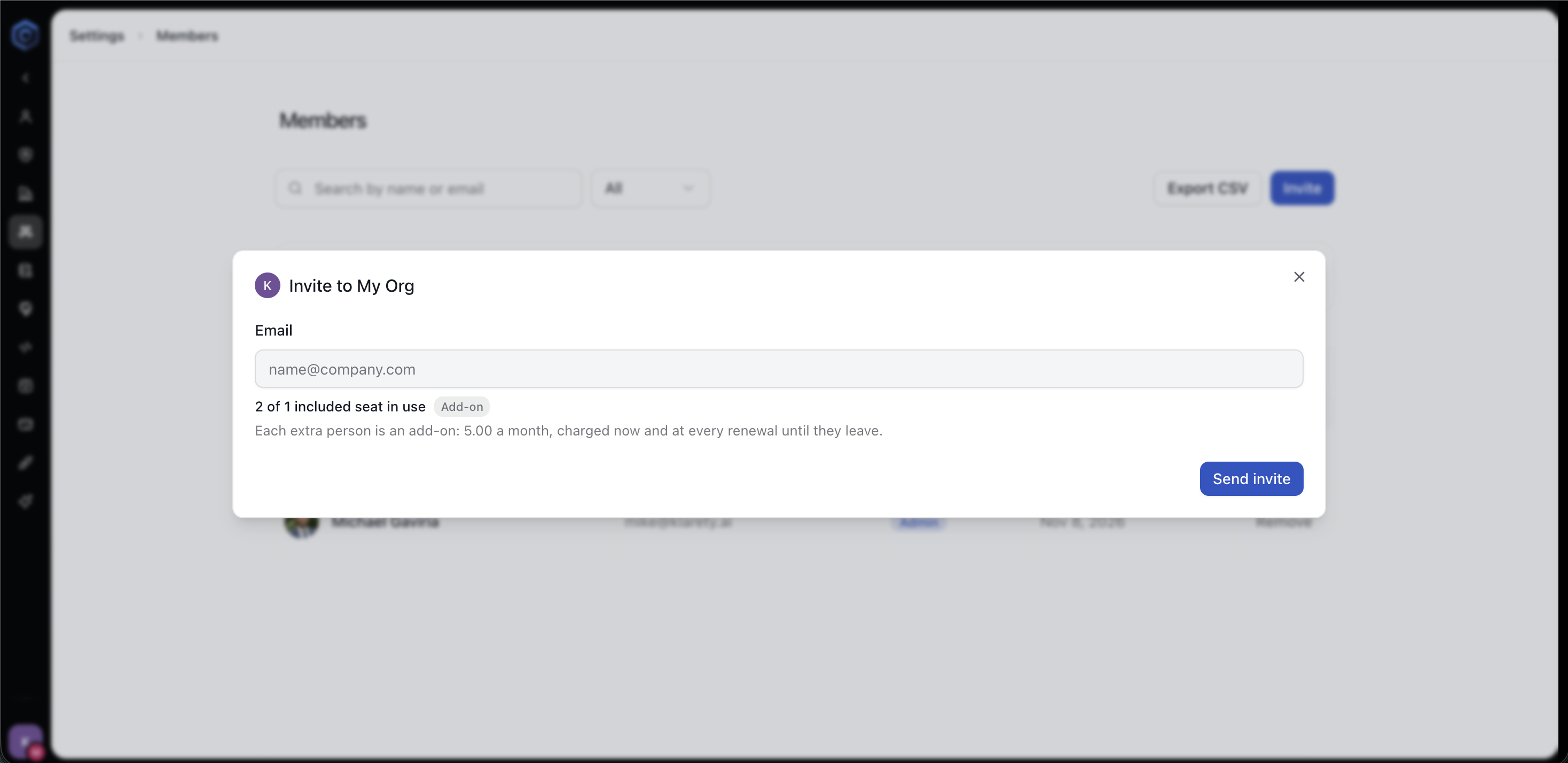
Select Invite, type the teammate's email and select Send invite. They join once they accept the email. The page shows which role they join with.
Follow the invitation
The person shows as Invited, then Active. Filter to see only invited people. Resend sends the email again; Revoke cancels, and you can invite them later.
Give access to data
Owners and admins always reach everything. For a member, open Settings, Data access and select Give access. Choose what (a , a table, a folder or a connection), the person, and the level, from Know it exists to Give this access to others, with an optional end date. Take back removes access.
Add them to a project
In the project's settings, open People, add the teammate and pick their project role:
- Admin: can open the Studio, change settings and manage people.
- Use: can open the Studio.
The project's owner can do everything, including delete it.
Check that it worked
- The teammate shows as Active on SettingsMembers.
- They see the project in their own Projects list and can open its Studio.
- They can query the tables you gave them in the SQL editor, and nothing else.
Common variations
- Need more seats. When every included seat is taken, add seats from SettingsUsage & limits. Each extra person is a monthly add-on, charged now and at every renewal until they leave.
- Keep a list. Select Export CSV to download the member list.
- Someone leaves. Select Remove. You can invite them again later.
- Work in the same Studio. Several people can share one , each with their own AI. See Working together.
Removing someone is immediate
A removed person loses access to the workspace at once.
If something goes wrong
Next steps
- Members: roles, seats and removing people.
- Data access: every access level in detail.
- Security and trust: how roles and access protect your data.