

Members and roles
Invite people, manage invitations and choose who can do what.
Everyone in your is a member, and each member's decides what they can change. Manage members in SettingsMembers.
Roles
| Role | Who has it | What they can do |
|---|---|---|
| Owner | The person who created the workspace. There is one. | Everything an Admin can do, plus remove members and delete or hand over the workspace. |
| Admin | Everyone who joins by invitation. | Invite people, change workspace settings, manage plans, credits and billing, create , connect GitHub and take live. |
| Member | People given limited access. | Work in the projects and data they are given. Admin-only actions show a note such as "Only admins can change these." |
Invited people join as Admin
The invitation says so: "They join as an admin once they accept the email." To limit what someone sees, use Data access and project roles.
Find people
The member list shows Name, Email, Role, Status and Joined.
Search by name or email, Filter members by All, Active or Invited, and Export CSV to download the list as shown.
Invite someone
Owners and admins only
Only owners and admins see Invite.
Open Invite
Go to SettingsMembers and select Invite.
Enter their email
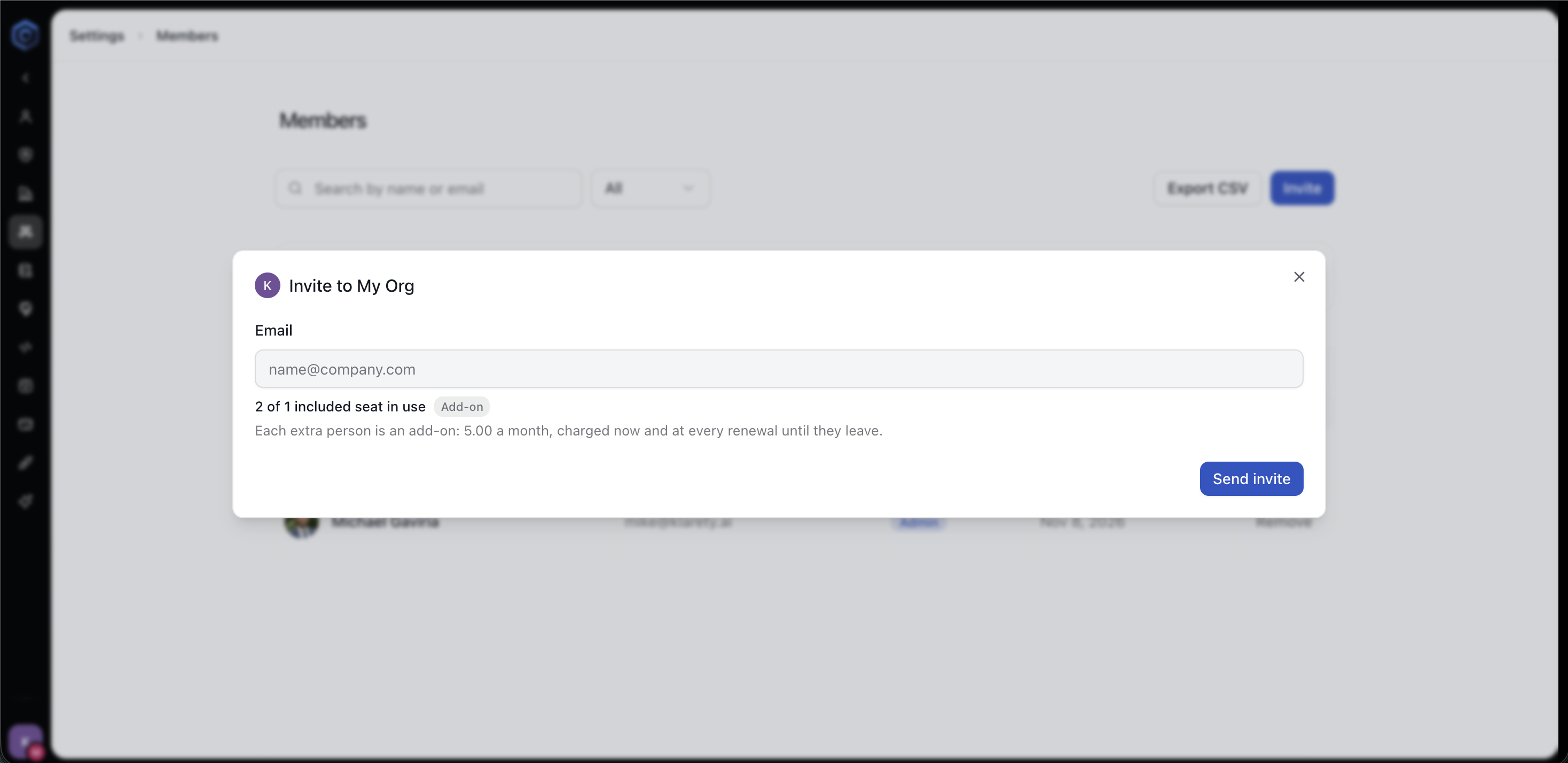
Type their work email and select Send invite.
Confirm a paid seat, if asked
If all included seats are in use, select Add seat and invite to confirm an extra seat.
Check it worked
They appear with the status Invited. When they accept the email, they become Active.
Seats
A seat is one person in the workspace, you included. The Members page shows seats included and in use.
| You see | What it means |
|---|---|
| "Your trial includes ... seats. Start Pro to invite people." | On the Free Trial you cannot invite more people. Select See plans. |
| "Each extra person is an add-on..." | Extra seats are paid from credits now and at every renewal until the person leaves. |
| "Every seat your plan allows is taken." | Select Contact us for more seats. |
Extra seats cost credits every month
An extra seat is charged when you invite, then at every renewal while the person stays. See Credits, usage and limits.
You can also add seats from Add seats in SettingsUsage & limits.
Manage invitations
On a row with the status Invited:
- Resend sends the invite email again.
- Revoke cancels the invite. You can invite them again later.
Remove a member
Removal is immediate
Only the Owner can remove a member. They lose access right away and can be invited again later.
Select Remove on an Active row, then confirm. You cannot remove yourself here; to leave, see Your account and security.