

Work together
Several people, each with their own AI, on the same code.
Everyone you add to a can open the same at once and work on the same code. Each runs their own AI, in their own session, with their own subscription. You see each other's changes as they happen.
Before you start
- Add teammates in the project's Settings, under People, with Add someone. They must already be members of your . See Project settings.
- Each person signs in to Claude Code, Codex or Cursor with their own subscription. See Claude Code, Codex or Cursor.
How it works
- One Studio, one codebase. Everyone works on the same files. A change by one person or their AI is there for everyone.
- Your own AI, your own session. Your AI tool runs as you, in your own terminal. Nobody else can type into your session.
- Your own subscription. Nobody else in the Studio can use your sign-in, even while you both work there. See Your sign-in stays yours.
- Your own access. Every AI reaches Klarety data with its runner's access. A teammate's AI cannot see a you can see unless they can too.
Work on the same project
Open the Studio
Each person opens the project's Studio. If it is running, they join it.
Open your AI
Each person opens their own AI from Open an AI tool in the AI tab.
Split the work
Agree who does what.
Tip
Give each person's AI its own copy when two people work on the same area. See Copies and second opinions.
See what others are doing
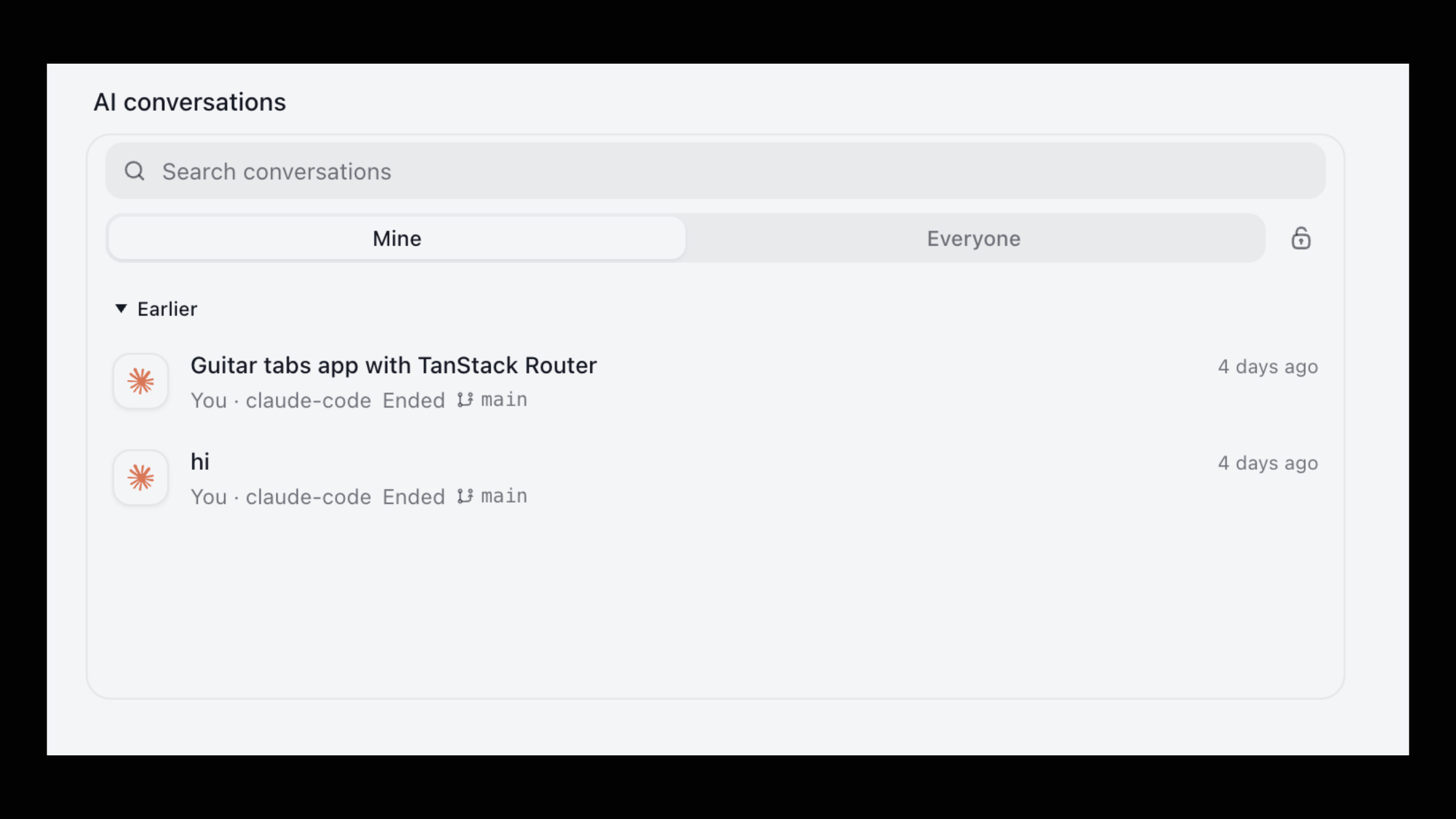
AI sessions in the side panel shows each AI's state (Working, Waiting or Finished). Choose Mine or Everyone.
Your conversations are shared with the project by default. Turn on Private to keep them to yourself; you can share them again any time.
Share what you built
Share your running app's port from the project's Sharing settings. Teammates still sign in. See The Studio.