

OneDrive and SharePoint
Bring in files and lists from Microsoft 365.
Connect OneDrive and SharePoint to a and its AI can read the files and lists you point it at and bring them into , ready to query and use in apps.
- OneDrive reads files from the folders you choose.
- SharePoint reads documents and lists from your sites. Lists become tables; documents stay available for apps to search and read.
Both are under Files and storage and connected by your 's AI with a Microsoft 365 sign-in.
Before you start
- A project. Its Studio's AI does the work. See Create a project.
- A Microsoft 365 account that can open the folders, sites or lists you want.
- If the sign-in says administrator approval is needed, ask your Microsoft 365 administrator, or use your own app (see below).
- The exact folder path, or the SharePoint site and list names. The more precise, the less the AI guesses.
Connect it
Open OneDrive
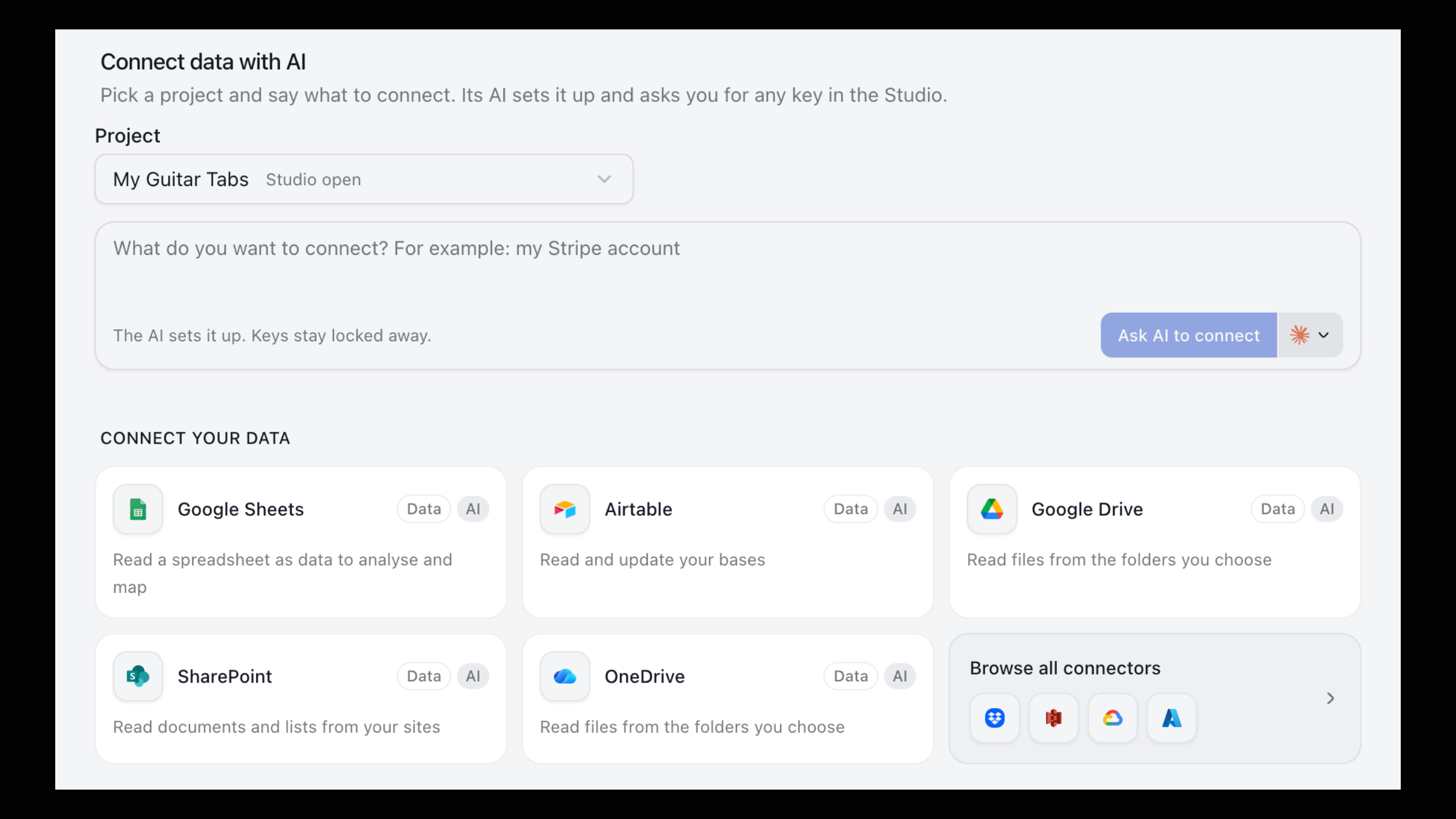
Go to Connectors, search for OneDrive and open it.
Send the request to a project's AI
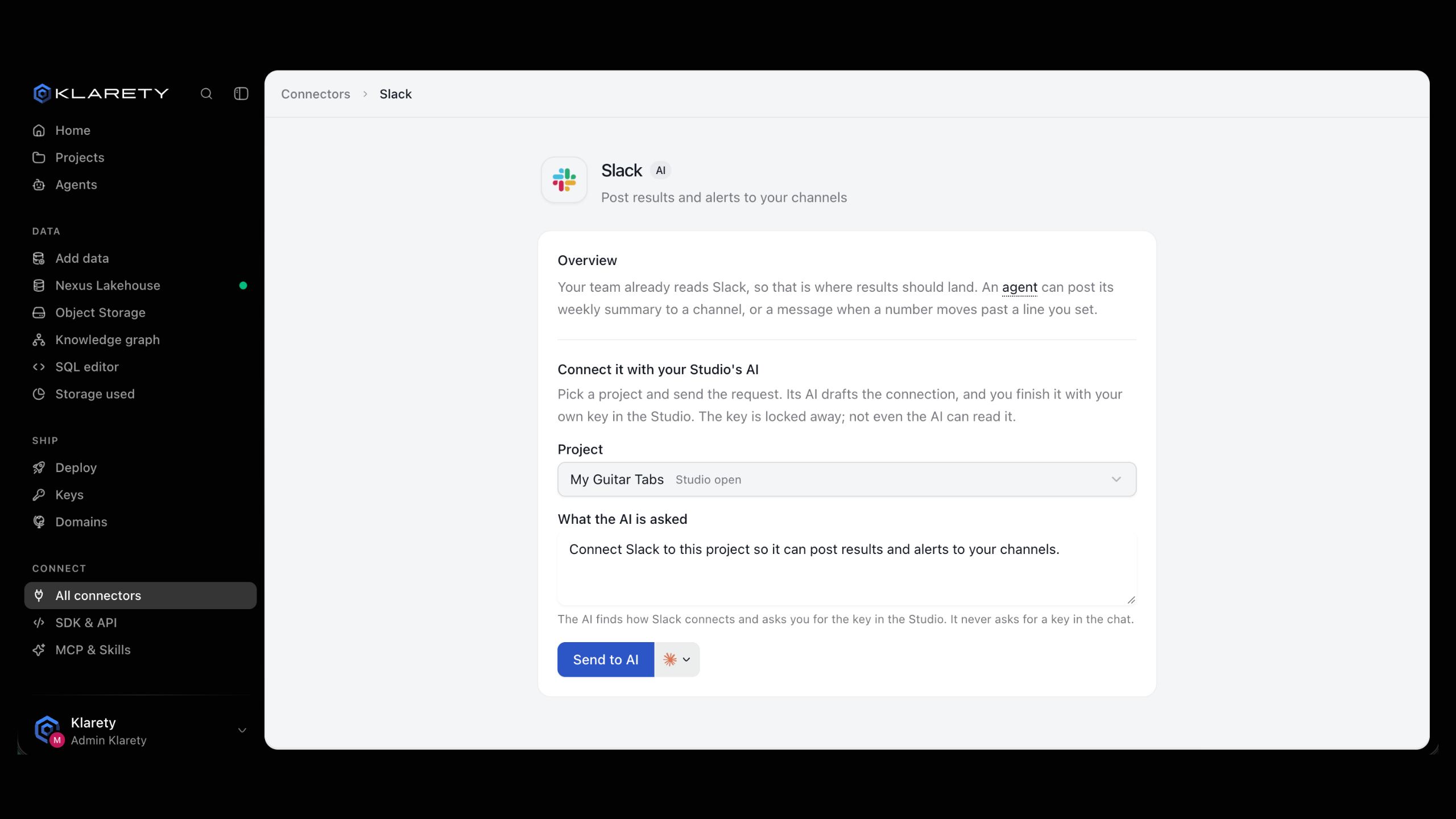
Under Connect it with your Studio's AI, choose the Project that should use OneDrive. What the AI is asked starts as "Connect OneDrive to this project so it can read files from the folders you choose." Edit it to say exactly what you want, for example: "Read the Excel files in OneDrive under Finance/Monthly and load each month into the finance table". Then select Send to AI.
The AI starts at once if the Studio is open, or when it next opens. Select Open Studio to go there.
Finish the connection
The AI drafts the connection and never asks for a key in the chat. The draft shows as Waiting for you. Select Connect to open the Connect OneDrive dialog.
Choose the sign-in button for Microsoft. The dialog shows the only site this sign-in is used with. Sign in with the Microsoft 365 account that has the access you need and approve what Microsoft asks for. The connection then shows Signed in as your account.
Choose what the AI may do
Under What the AI may do with it, choose Can read (nothing there changes) or Can read and change (the AI may also add, change and remove things). Then select Connect.
Test it and tell the AI
The dialog says OneDrive is connected. Select Test it, then Tell the AI so it carries on.
You can also start inside a project: in Settings, Keys, describe it in What do you want to connect? and select Ask AI to connect.
For SharePoint, open SharePoint instead and follow the same steps. A good request names the site and the list, for example: "Load the Projects list from the Operations site into a table called projects."
What you get
- Files (spreadsheets, CSV, documents) can be loaded once into a Nexus table, or kept in step by an that checks the folder on a schedule. See What agents do.
- SharePoint lists become tables, one row per list item and one column per list column.
- Documents stay where they are; an app in the project can search and read them while it runs.
Query the tables in the DataSQL editor, and decide who sees them in Data access.
Test, pause and reconnect
A project's connections are listed in its Settings, under Keys, with their status.
| Status | What it means |
|---|---|
| Waiting for you | Drafted by the AI. Select Connect to finish it. |
| Works | Connected and usable by the project. |
| Needs reconnecting | The key or sign-in stopped working. Select Reconnect. |
| Paused | Nobody can use it until you select Resume. |
From the same row: Test, Pause, Turn off here (this project stops using it) or Remove (deletes the key, and every Studio using it stops reaching OneDrive or SharePoint).
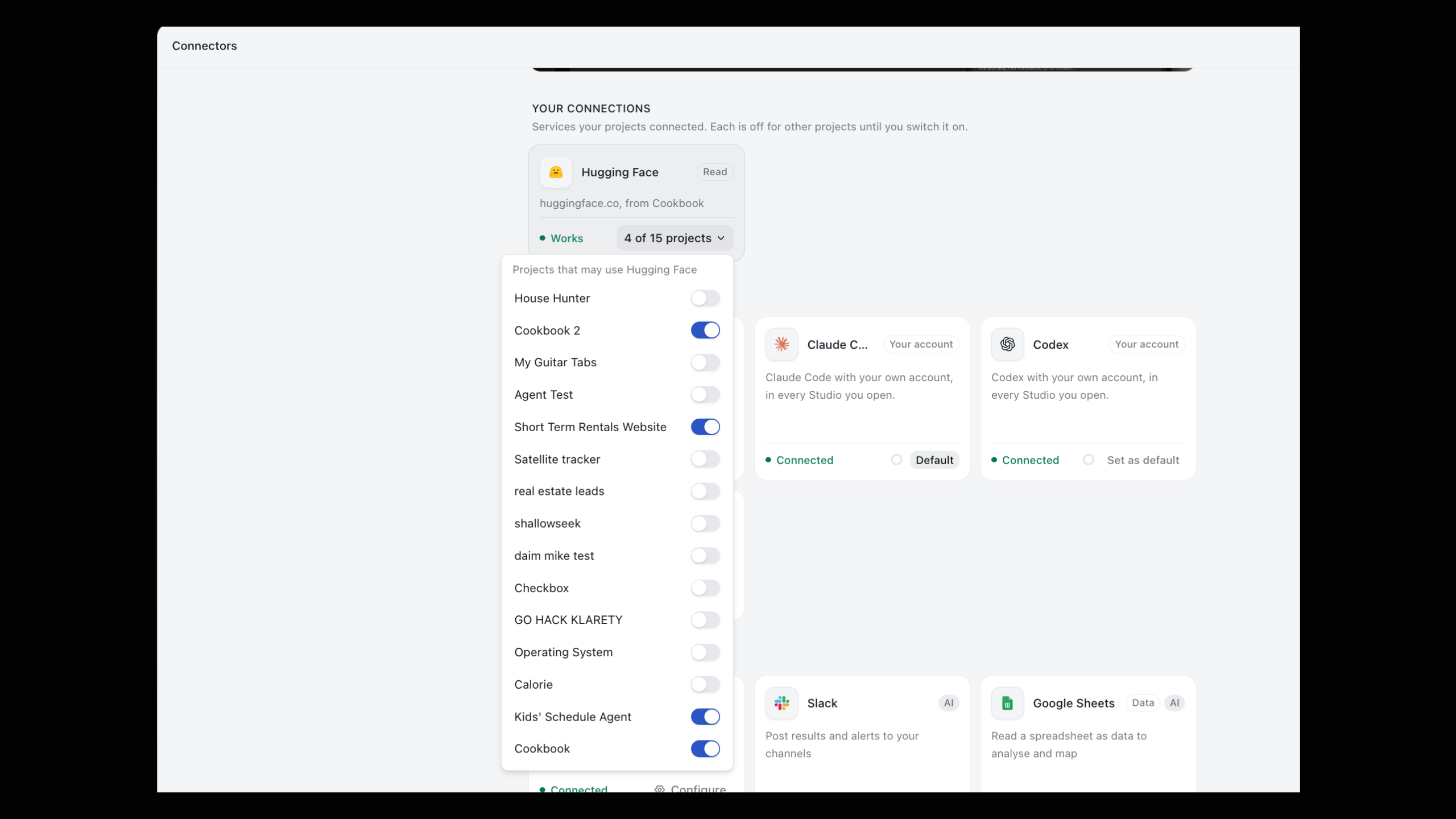
A connection belongs to the project it was made in. Owners and admins see all of them under Your connections on Connectors. It stays off for other projects until an admin switches it on under Projects that may use it.
If the test fails
Test reports one of these:
- It works: the project reached the service.
- The key was rejected: select Reconnect and enter a new one.
- The service cannot be reached: check that it is up and accepts outside connections, then test again.
- Internet is off: the project's internet is Off. Turn it on in its Settings. With Only allowed, the Studio reaches only its connections and the sites you add.
- It is not connected yet: select Connect.
Specific to Microsoft 365:
- Limited: permissions were not granted. Some actions will fail. Select Reconnect and approve everything the job needs.
- Was signed in as an account. Sign in again to keep using it. A password change or an expired grant ended it. Select Reconnect.
- The AI cannot find a site or folder. Your account cannot see it, or the name is different. Check you can open it yourself in Microsoft 365, then give the AI the exact path.
Use your own sign-in app
If your organization only allows sign-ins through its own registered app, choose Use your own app instead in the connect dialog. Register an app with the provider, add the Return address for your app Klarety shows, then paste its Client id and Client secret and select Save your app. The secret is sealed and never shown again.
Where your key goes
The key or sign-in is encrypted with a managed key service the moment you select Connect, and not even the AI can read it. The Studio never holds the key. If the one site it is sent to is not the service's own address, Klarety warns you and asks you to type the site to confirm.