Create a project
Choose a size, how it runs and who joins, then open your first Studio.
A is where you build one thing on your data: an app, a dashboard, a tool or an . Each has its own , a private cloud workspace with an AI, a code editor, an app preview and a link to your data. Use one project per app, so its code, secrets and people stay separate.
Before you start
- You need a Klarety and .
- To save code to GitHub, a workspace admin connects GitHub once for every project. See GitHub. You can also link a repository later.
- Teammates you invite must already be members of your workspace. See Members.
A running Studio uses credits
A Studio uses your workspace's credits while it runs, priced per minute. It stops on its own when nobody uses it. See Credits.
Create the project
Open New project
Go to ProjectsNew project, or select New project on Home or the Projects page.
Name it
Type a Project name (required). Until you do, the form shows "Add a name to create your project". You can rename it later.
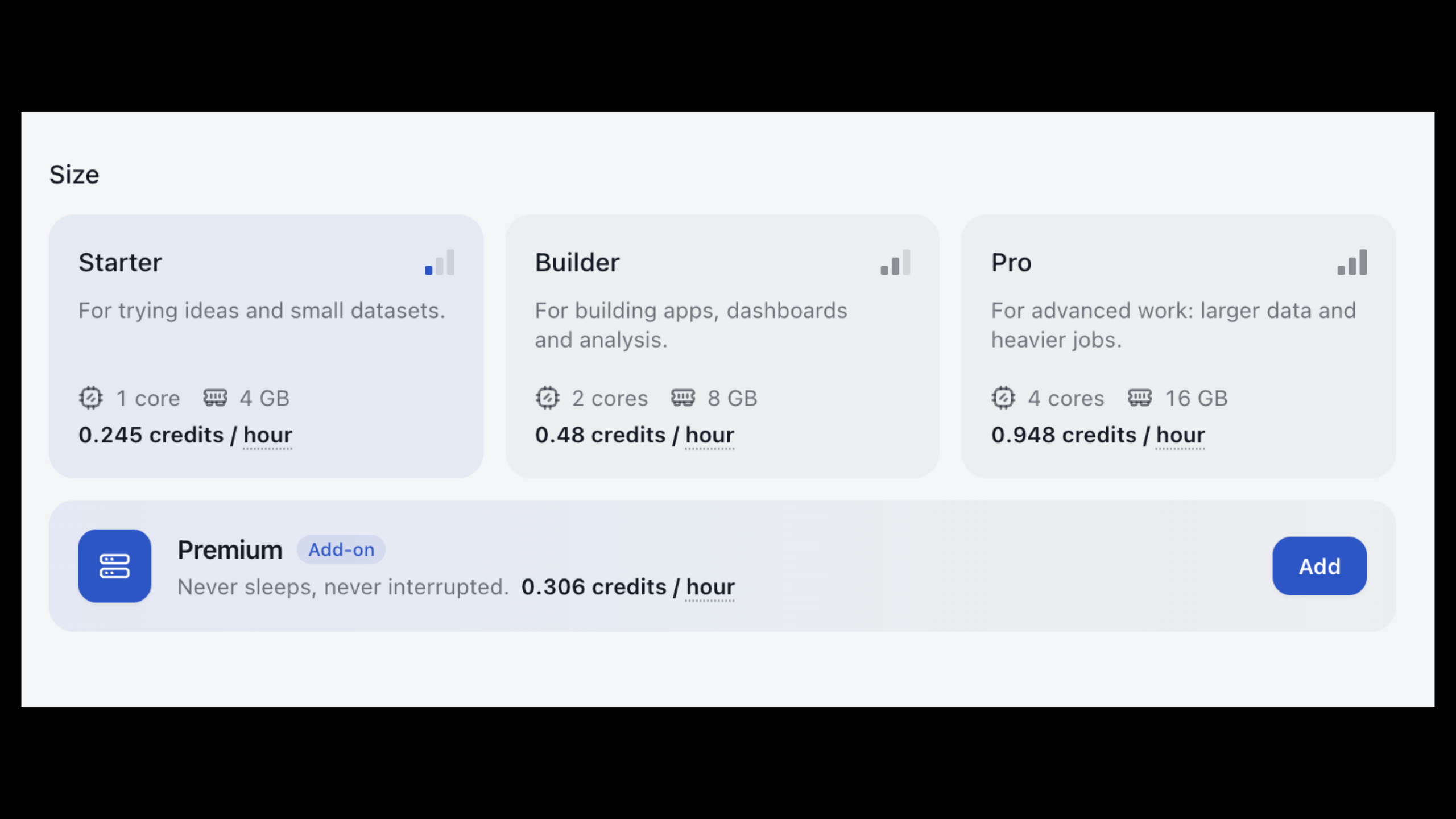
Choose a size
Under Size, pick the machine your Studio runs on. Each shows its cores and memory. Starter is plenty to begin; bigger is faster and costs more. You can change it later.
Set the rest (optional)
- AI harness: the AIs this project offers. See How the AI harness works.
- Connect GitHub: the repository this project saves to and deploys from.
- Invite people: teammates from your workspace.
- Internet access: what the Studio can reach (see below).
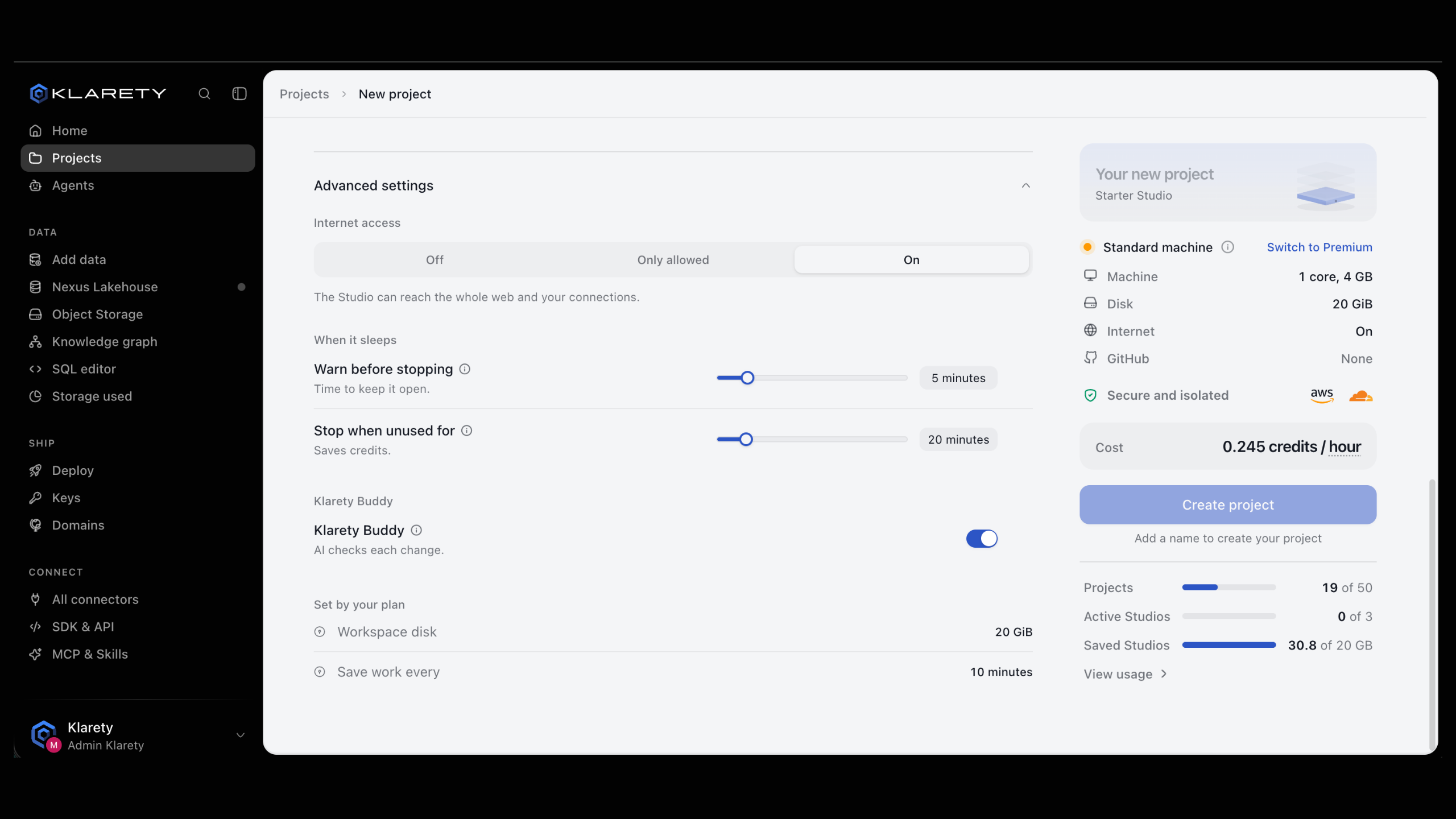
- Advanced settings: sleep, backups and Klarety Buddy. Values your plan fixes show "Set by your plan".
Create it
Select Create project (or press ⌘ Enter). The summary beside the form shows the machine, disk, internet setting and cost in credits per hour.
Create a project and start its Studio with the SDK. studios.open returns once the request is accepted, so poll studios.get until the state is READY.
import time

from klarety import Nexus

nx = Nexus.connect()

project = nx.projects.create("Sales dashboard")
project_id = project["project_id"]

nx.studios.open(project_id)
while (studio := nx.studios.get(project_id))["state"] != "READY":
    time.sleep(5)

print(studio["editor_url"])
projects.create also accepts repo_url to link a repository. To stop the Studio and keep its work, call nx.studios.close(project_id).
Standard or Premium
Every Studio runs on AWS, in a secure, isolated workspace with disks encrypted at rest. How it runs decides the machine:
| Choice | What the app says | When to use it |
|---|---|---|
| Standard machine | "Shared machine that can be taken back at any time. A new one starts on its own, and no work is lost." | Most work. It costs less. |
| Premium machine (add-on) | "Never sleeps. Never interrupted." | Long jobs you do not want restarted, or a Studio that must stay up. |
On Premium, the machine is yours while the Studio runs. Select Add to use it. "Not on your plan" means your plan does not include it. You can switch later with Switch to Premium.
Internet access
| Setting | What the Studio can reach |
|---|---|
| On | The whole web and your connections. |
| Only allowed | Only your connections and the sites you add. |
| Off | Nothing outside Klarety, so connections do not work. |
If your plan does not allow adding sites, the Studio can reach only your connections.
Check that it worked
Your project appears in Projects. Select Start Studio on its card and confirm. While it starts, you see "Checking your plan and credits", "Finding capacity", "Restoring your workspace" and "Starting the editor". When the status reads Running, open it.
Find and organise projects
The Projects page shows projects as a Board (lanes Stopped, Running, Deployed and Failed), a Grid or a List. Filter by role, tags or Studio state, and order by last updated. Select Save as view to keep a layout under Your views.