

Run settings and app keys
Choose how each part of your app runs, and rotate the key your live app uses.
Each part of a deployed app (for example, a website and an API) has its own run settings: how it runs, its memory and CPU, and how many instances run at once. They decide how fast it answers and what it costs.
The three ways to run
| Setting | What it does | Good for |
|---|---|---|
| Sleeps when idle | Starts when someone visits and costs nothing while idle. The first visit after a quiet spell takes a few seconds. | Internal tools, demos, apps used now and then |
| Always on, lower price | Keeps running at a lower price, and may restart now and then. | Apps that should answer at once but can handle an occasional restart |
| Always on | Keeps running and is never interrupted. | Busy apps and anything that must not restart |
The AI picks the cheapest way for each part at setup. You can change it any time.
Before you start
- The must be set up to deploy (see Deploy an app).
- To change a setting, you need to be able to change the project.
See the current settings
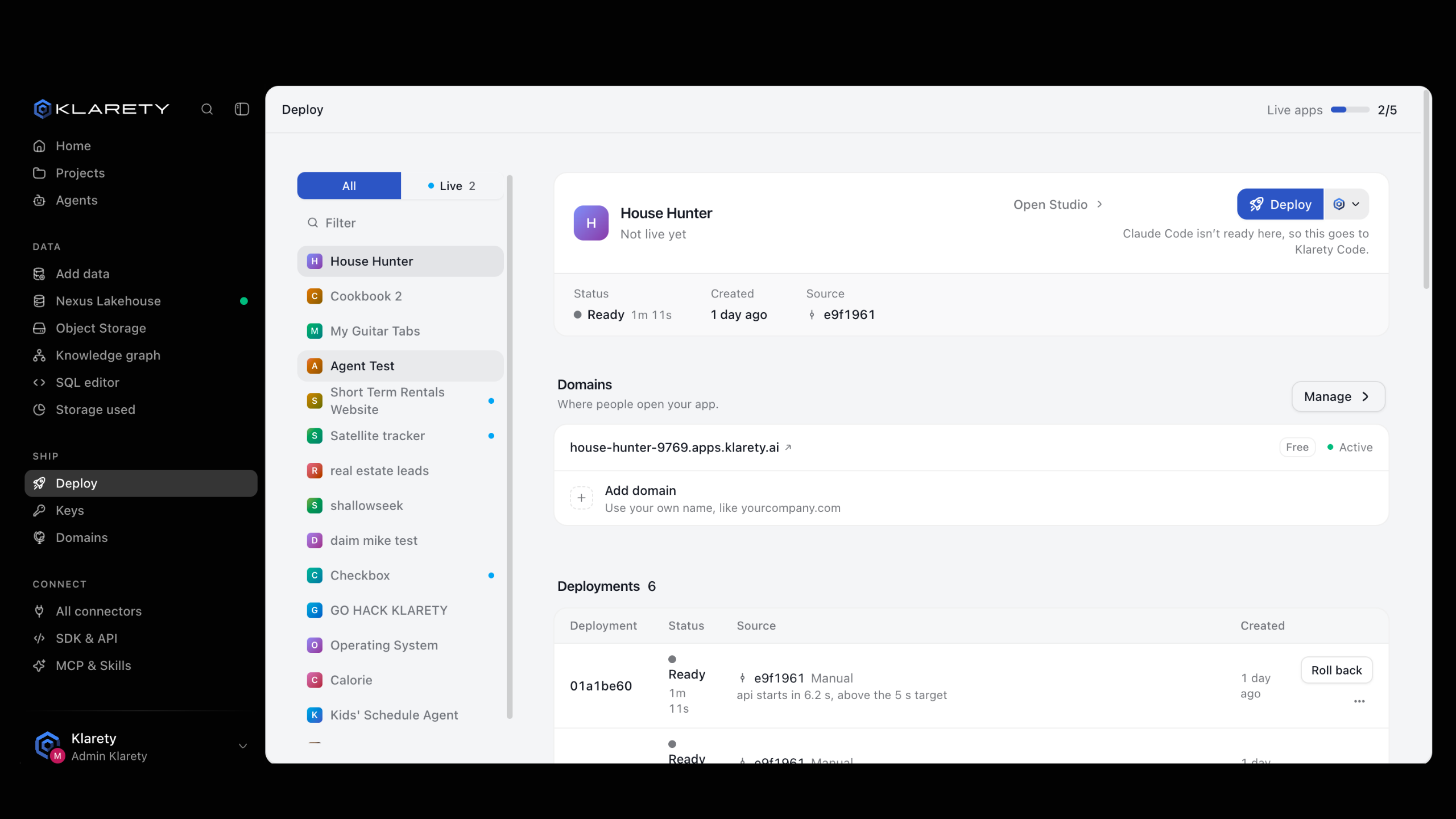
Open the project on Deploy and go to Settings. Each part of the app shows:
- How it runs (one of the three settings above).
- Memory and CPU.
- Most instances at once, with what your plan allows (Plan allows).
- The most it can cost: "At most X credits an hour, at full load".
A ceiling, not a bill
The hourly figure is reached only when every instance is busy. Your real spend is in SettingsUsage & limits (see Credits).
The section says where the settings come from: the linked repository's production branch, or the .
from klarety import Nexus

nx = Nexus.connect()
print(nx.projects.deploy_settings("PROJECT_ID"))
Each service lists its mode (on-demand for Sleeps when idle, spot for Always on, lower price, always-on for Always on), its size, its most instances at once, the plan's ceiling for each, and the most it can cost an hour.
Change a setting
Ask the project's AI. It edits the deploy setup and pushes it, and the push deploys the change, so the setup stays reviewed and versioned in your code.
Open Settings
On the project's Deploy page, go to Settings and find the part.
Ask AI to change it
Select Ask AI to change and fill in What should change?, for example: "Keep the API always on, and let the website sleep when idle." Select Send.
Watch it work
The app says "Sent to your AI. Watch it work in the Studio." If the Studio is closed, the AI starts when it next opens.
nx.projects.ask_ai_to_deploy(
    "PROJECT_ID",
    "Keep this service always on, with at most 2 instances",
    service="api",
)
Leave out service to ask about the whole app, for example to set up deploying for the first time.
What you see when it worked
A push from the Studio to the production branch waits for a person to approve it (see Approvals). Once deployed, Settings shows the new setting and cost ceiling.
Read how each part is doing
Under each part, Last X days shows Calls, Errors, Average response, Busiest moment (instances at once, of the most allowed), Wake-up after idle for a part that sleeps, and Memory at start. Use them to decide:
- Wake-up after idle is too long for your visitors: switch to Always on, lower price or Always on.
- Busiest moment reaches the most instances allowed: allow more instances, up to what your plan allows.
- Memory at start is close to the part's memory: give it more memory before it runs out.
Rotate the app key
Your live app reaches the project's data with its own App key. Only the live app holds it; it is never shown.
Rotating stops the old key at once
The old key and anything it opened stop working now. The app goes out again with a new key, nothing rebuilt, and may show errors for about a minute.
Open the App key section
Open the project on Deploy and find App key.
Rotate it
Select Rotate key and confirm. The app shows Key rotated; the live app gets the new key within a minute.
nx.projects.rotate_app_key("PROJECT_ID")Rotate it whenever you think it leaked. You never copy it anywhere: the app receives it by itself.
If something goes wrong
- "Not priced on your plan yet": this setting is not available on your plan yet. Contact us to turn it on.
- The app ran out of memory: the deploy explains it. Raise the memory for that part, or make the app use less as it starts.
- The app did not start answering in time: if it is slow to start (for example, it loads a large model), load that on first use, or run it always on so it starts once and stays up.