

Workspace settings
Name, logo, Workspace ID, new workspaces and workspace-wide AI tools.
The page holds what applies to everyone: name, logo, ID and allowed AI tools. Open SettingsWorkspace.
Owners and admins change these
Everyone can see this page; only owners and admins change it. See Members and roles.
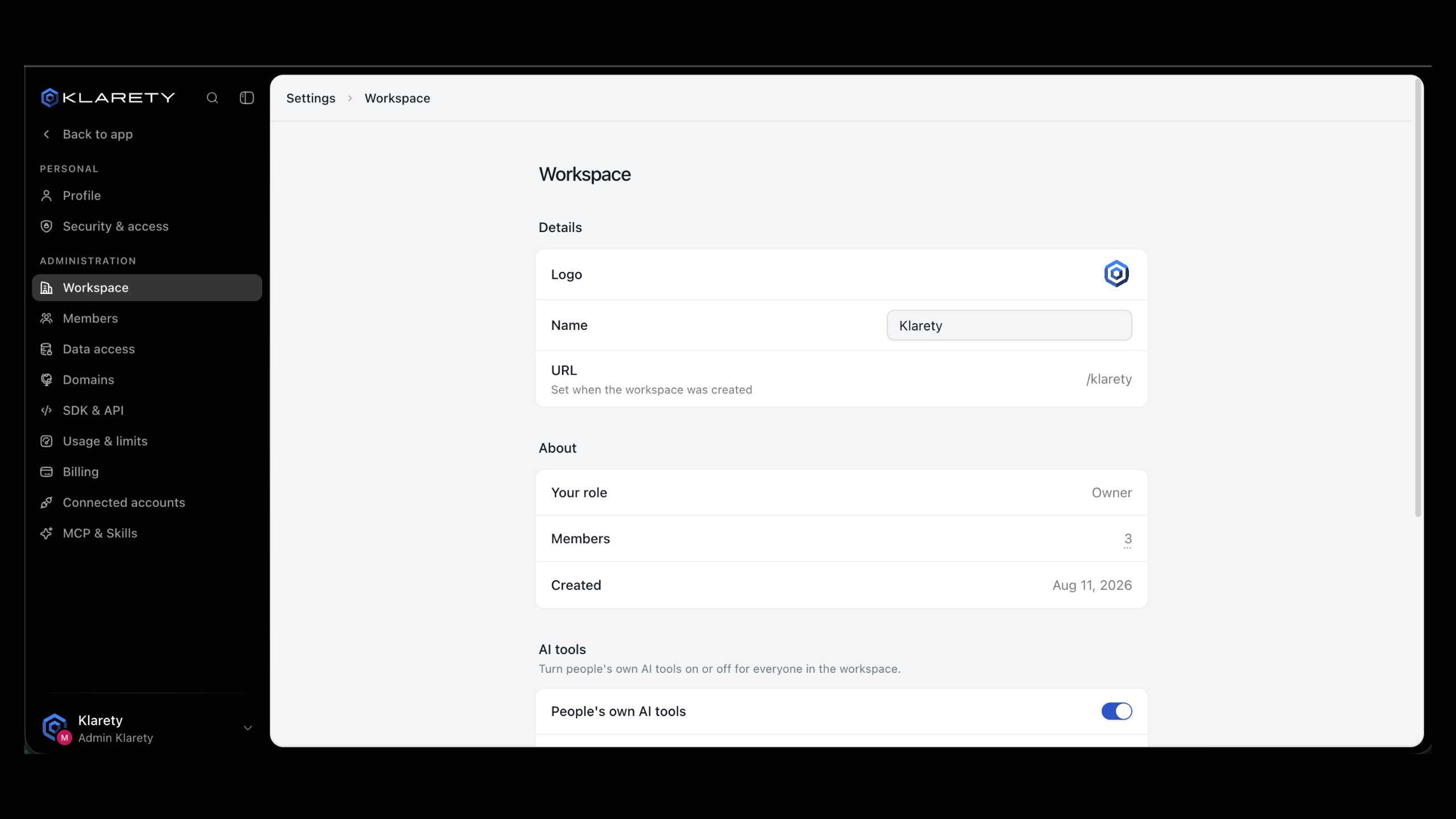
Details
| Setting | What it does |
|---|---|
| Logo | Select Change workspace logo and upload an image. |
| Name | The name everyone sees. Edit it in place. |
| URL | The workspace's address, set at creation. It cannot be changed. |
About
Shows Your role, the number of Members and when the workspace was Created.
Workspace ID
Copy the Workspace ID and share it when you contact support, so we find your workspace at once.
Create another workspace
A new workspace has its own plan, members and data, shared with nothing else.
Start it
Under New workspace, select Create workspace.
Name it and set it up
Follow the setup: name the workspace, connect GitHub if you want, and choose a plan. See Plans and billing.
AI tools for the whole workspace
Every offers Klarety's AI and each person's own AI tools (Claude Code, Codex and Cursor) on their own subscription. Under AI tools, People's own AI tools lists each with Allow.
- Turn a tool off and nobody can open it in a Studio; they see "Your workspace does not allow" the tool. Turn it back on any time.
See AI harness for how each sign-in stays private.
Disconnect your own sign-in
Your own AI tool sign-ins are in SettingsConnected accounts. Disconnect removes it from every and ends it in any open Studio.