

How the AI harness works
Klarety AI and your own AI tools, side by side in every Studio.
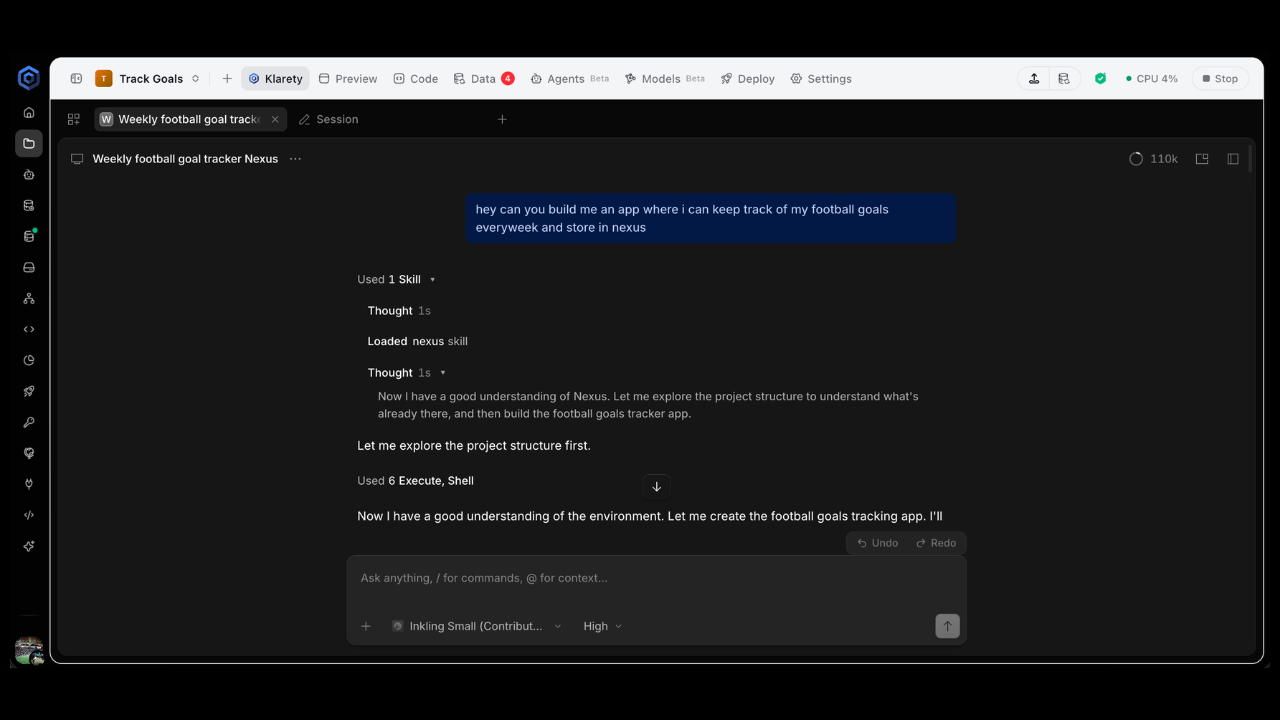
Every comes with Klarety AI, an AI that knows Klarety. Beside it, each person can bring the coding tool they already pay for (Claude Code, Codex or Cursor) with their own subscription. Together they are the .
Use Klarety AI for your data, your own tool for the coding style you know, and hand work between them.
What you get
| AI | Sign-in | Where it works |
|---|---|---|
| Klarety AI | None. It comes with every Studio. | Every Studio, ready at once. |
| Claude Code | Your own Claude Code subscription. | Every Studio you open, after you sign in once. |
| Codex | Your own Codex subscription. | Every Studio you open, after you sign in once. |
| Cursor | Your own Cursor subscription. | Every Studio you open, after you sign in once. |
Each reaches your Klarety data through the built-in Klarety MCP, with your own access and never more.
Sign in once, use it everywhere
Sign in to your tool once, in your own terminal in a Studio. The sign-in then follows you to every .
It is encrypted with your own key, kept outside the Studio, and opened only where you are working now. Nobody else in your can use it, not even someone in the same Studio. See Your sign-in stays yours.
A tool runs in one project at a time. Open it in a second and the Studio offers Move here.
The AI tab
In the Studio, the AI tab shows your AI tools as tabs:
- Klarety is Klarety AI.
- Open an AI tool (the + button) lists the AIs you can open, and Your terminal. A tool you have not signed in to yet shows Sign in.
- A tab that needs your answer shows Waiting for you.
Closing a tab does not stop the tool. Reopen it from + to pick up where it left off.
Working with other people
Several people can work in one Studio on the same code, each with their own AI, session and subscription. See Work together.
Trying a change safely
Any AI can work on a copy, a separate branch that leaves your main code as it is. Keep it or throw it away, after a second opinion from another AI if you like. See Copies and second opinions.
What a workspace admin controls
Admins only
Only a workspace Owner or Admin can allow or disallow tools.
Admins turn people's own AI tools on or off for the whole workspace, in SettingsWorkspace under AI tools. A disallowed tool shows "Your workspace does not allow" and cannot be opened. Klarety AI is always available.