

Templates
Start from a ready-made agent and let the AI fit it to your data.
A template is a working to start from. Pick one, and the AI in your project's Studio fits it to your own and addresses. It becomes an ordinary draft you can try, change and take live.
The templates
| Template | What it does | When it runs |
|---|---|---|
| Daily summary of a table | Reads the newest rows of a table and writes a short summary of what changed, in plain words. | Every morning at 8 |
| Score each new item with AI | Reads the newest rows of a table, has AI score each one from 1 to 5, asks you, then saves the scores. | Every day at 9, and asks you before saving |
| Copy a web API into a table | Calls a web address that returns a list, and adds what it returns to a table, so you keep a history. | Every hour |
| Weekly report as a file | Looks at what tables you have and how they grew, and writes a short report you can download. | Every Monday at 9 |
Score each new item with AI stops before saving, asks "Save these scores to the ai_scores table?", and saves only after someone selects Yes, continue.
Before you start
Your agents are in Agents. You need edit access to the ; someone who can only use it sees the templates but cannot set one up.
Use a template
Open the templates
Open a project, go to its Agents tab and open Templates. When a project has no agents yet, Browse templates takes you there too.
Pick one
Choose the closest match to your job.
Let the AI fit it to your data
Select Use. The Studio's AI points it at your real tables instead of the placeholders and saves it as a draft.
Or add it exactly as it is
Select Add as a draft, as it is to copy it unchanged. It then points at placeholder names (the table my_table, or the address https://api.example.com/items), so change those before you try it.
Replace the placeholder names
A template added as it is still reads my_table or https://api.example.com/items. Its first try fails until you point it at your own data.
What you see when it worked
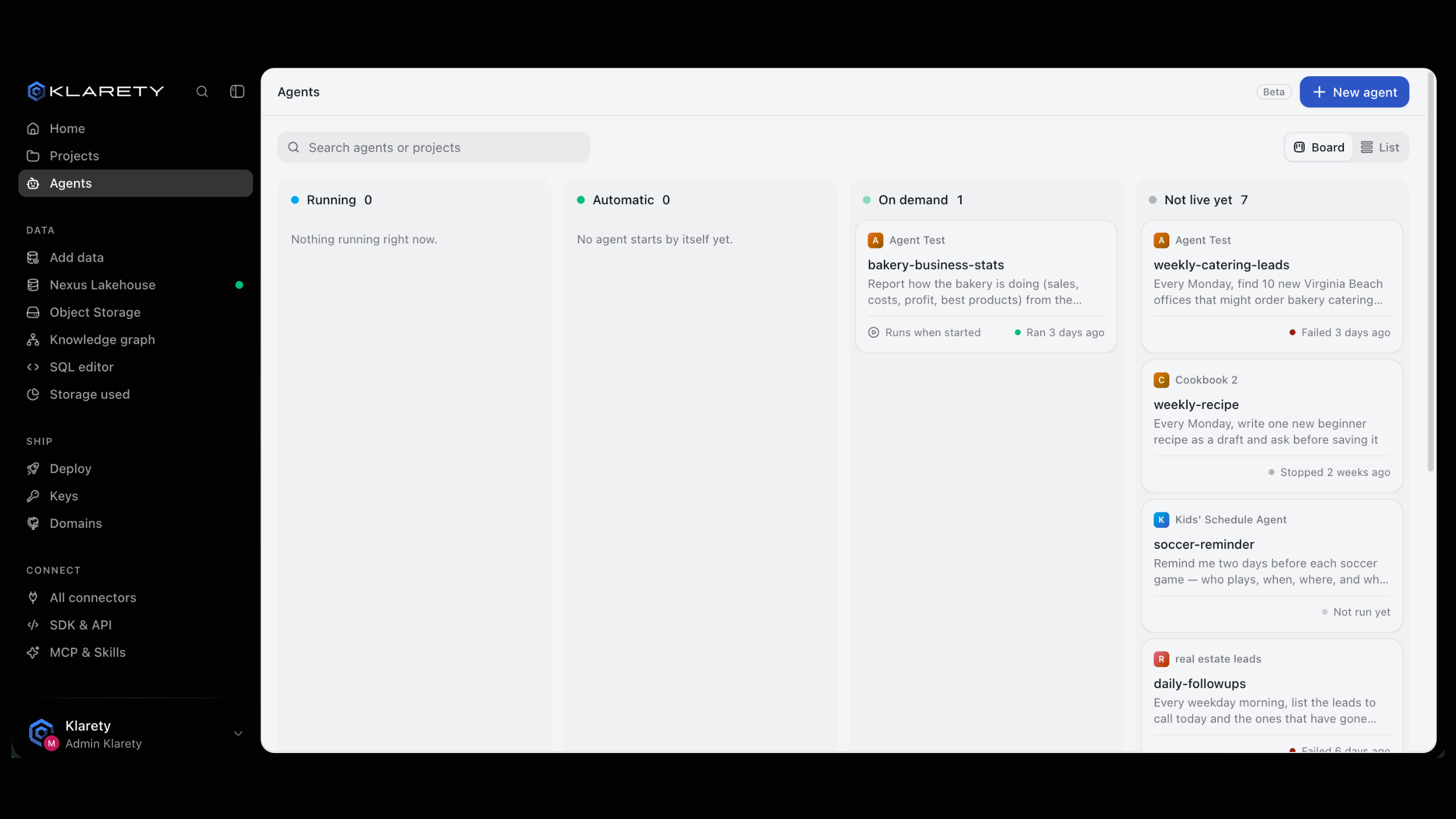
The new agent appears under Not live yet on the Agents page, marked Draft. Its page shows its steps and the schedule it follows once live. Select Try it to run it once now.
Common variations
- Change the schedule: ask the AI, for example "run this at 6 instead of 8, weekdays only".
- Change what it reads: the summary and scoring templates read up to 200 rows of the table; ask for a filter such as "only rows from yesterday".
- Save somewhere else: the scoring template adds rows to
ai_scores, and the web API template adds rows toapi_data. Ask the AI to use another table. - Remove the approval from the scoring template once you trust it, or add one to another template before it saves anything.
If something goes wrong
- You cannot select Use: you can use the project but not edit it. Ask the project's owner or an admin to make you an editor.
- The first try fails on a table that does not exist: the draft still points at a placeholder. Edit it, or ask the AI to point it at your table.
- The web API template fails: the address must return a JSON list (or a single object, which is saved as one row) and must answer within 60 seconds.