

The Studio
Your project's workspace: AI, preview, code, data, agents and deploy.
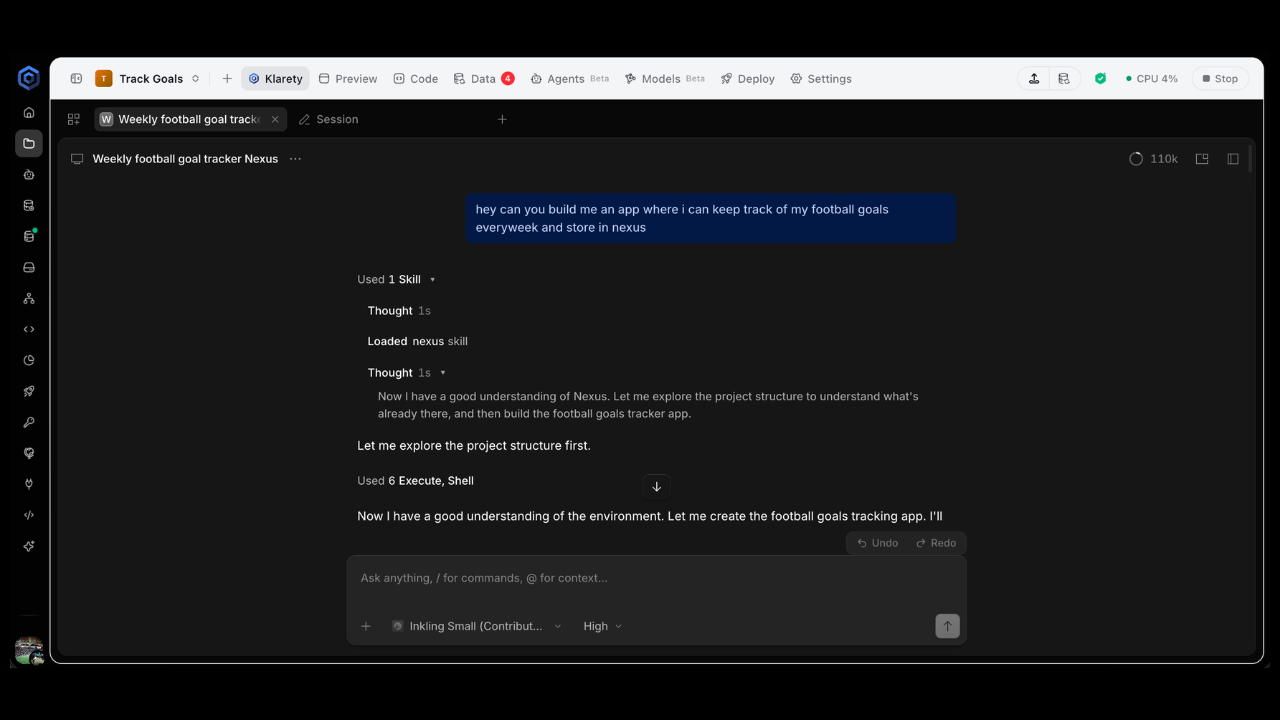
The is your 's workspace in the cloud. It holds your code, runs your app while you build, and gives you an AI that reads your data, writes code and . Idea to live app, without switching tools.
Before you start
- Create a project first. See Create a project.
- A running Studio uses your workspace's , priced per minute. Unused, it stops on its own and keeps your work.
Open the Studio
Find your project
Go to Projects and find the project.
Start it
Select Start Studio and confirm. A running Studio shows Open Studio, which opens it in a new tab.
Wait for Running
The Studio checks your plan and credits, finds capacity, restores your workspace and starts the editor. The status goes from Starting to Running.

import time

from klarety import Nexus

nx = Nexus.connect()
project_id = "YOUR_PROJECT_ID"

nx.studios.open(project_id)
while (studio := nx.studios.get(project_id))["state"] != "READY":
    time.sleep(5)
print(studio["editor_url"])

nx.studios.close(project_id)
studios.open starts the Studio, or attaches to the one already running. studios.close saves the workspace and stops it.
Tip
Split the view to keep the AI and the Preview side by side.
The tabs
| Tab | What it is for |
|---|---|
| AI | Talk to Klarety AI or open your own AI tool. See How the AI harness works. |
| Preview | See the app you are building, running inside the Studio. |
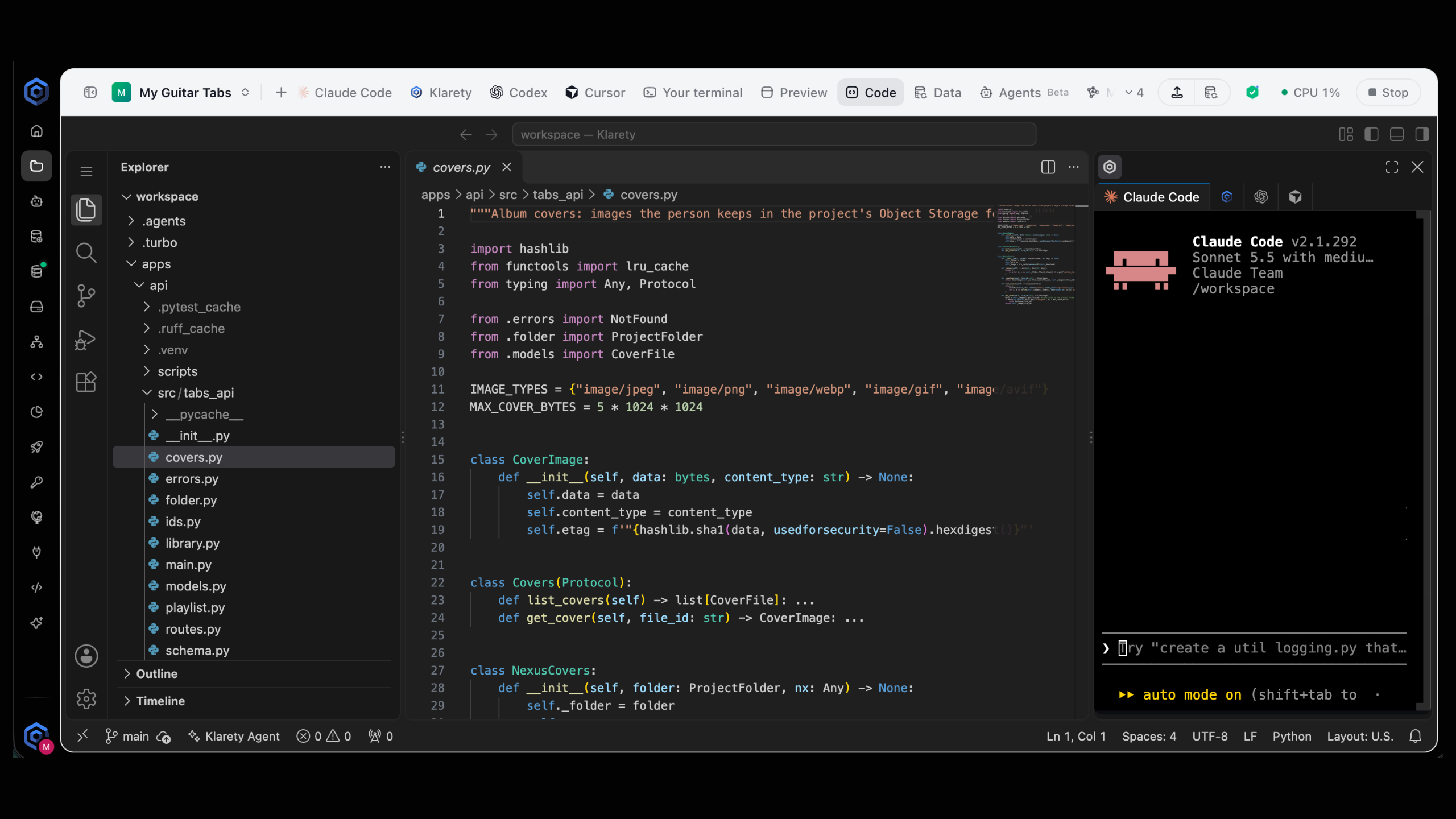
| Code | A full code editor on your project's files. |
| Data | Your project's data and connections. |
| Agents | The this project runs. See Agents. |
| Deploy | Put your app online and manage its versions. See Deploy an app. |
| Settings | The project's settings. See Project settings. |
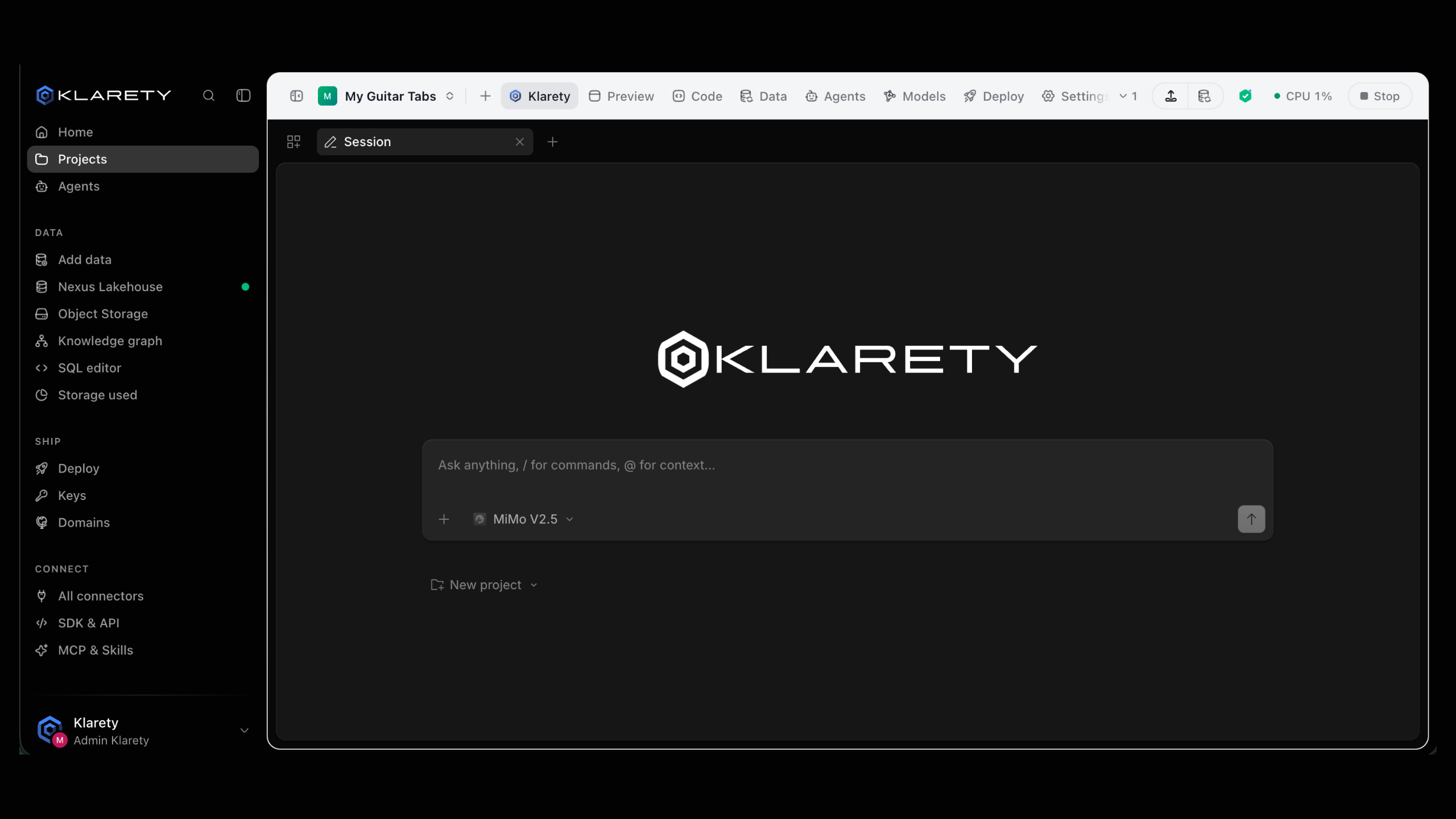
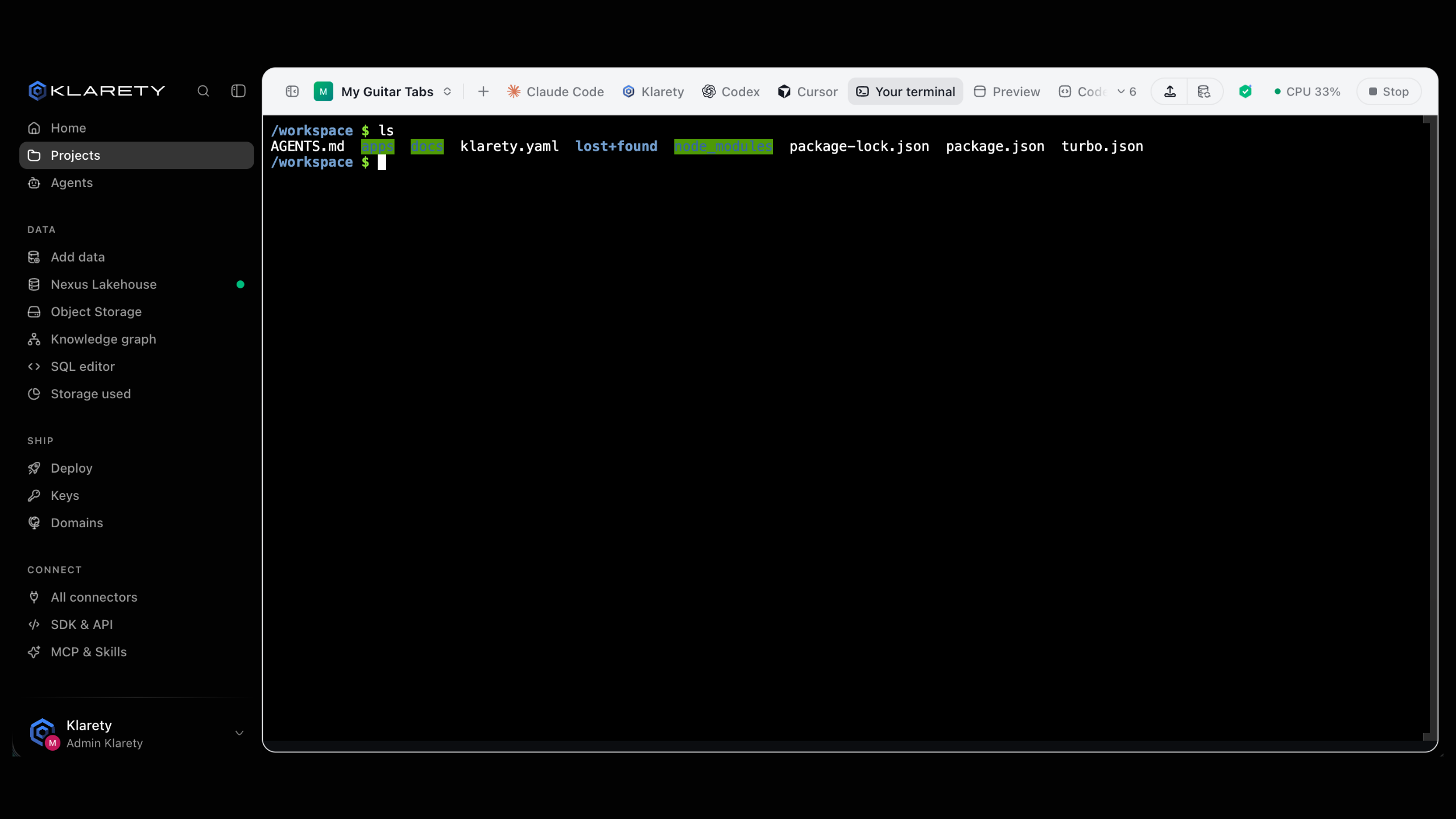
In a tab's menu, Split to the left or Split to the right shows two tabs side by side, and Open in a new browser tab moves it out.
The side panel shows Files and AI sessions: what each AI is doing (Working, Waiting, Finished) and earlier conversations to Continue or Read.
The project overview
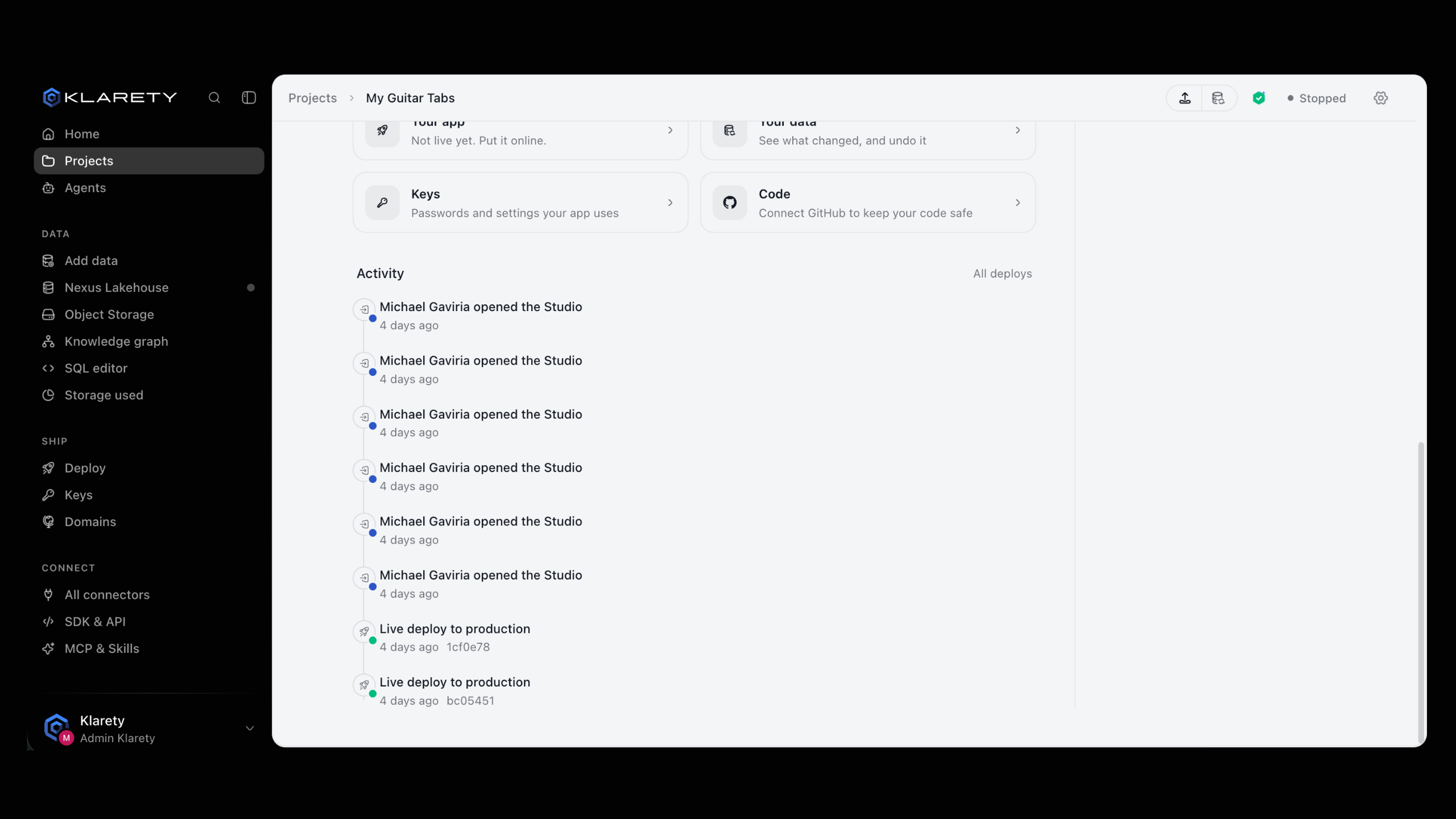
The project page has shortcuts:
- Your app: whether it is live, and its address.
- Your data: see what changed, and undo it.
- Keys: passwords and settings your app uses. See Secrets and environment variables.
- Code: the GitHub repository your code is saved in.
The Activity list shows deploys and who opened the Studio.
Share what you are running
To show a running app to the project's people, share its port in project settings under Sharing: choose the Port and For how long. They still sign in, and only they can open it. Stop sharing ends it. For anyone else, deploy it.
When the Studio stops
- After a set time with no typing, clicks or runs.
- After a longer time with nobody opening it, even if the AI is busy, so a forgotten task cannot keep spending credits.
- A notice shows first: Keep working keeps it open. Your work is saved either way.
Stop Studio stops it yourself, saving first. Set these times in project settings, under Studio.