

GitHub
Link repositories to your projects and deploy on every push.
Connect GitHub once and every in your can link a repository. Each push can then your app.
Before you start
Owners and admins only
Only workspace owners and admins can connect or disconnect GitHub. Everyone else sees Ask an admin to connect and uses the repositories an admin connected. See Members and roles.
- GitHub access. Permission to install apps on the GitHub account or organization that owns the repositories.
Connect GitHub
Start the connection
Go to Connectors, open GitHub and select Connect. You can also connect it from SettingsConnected accounts or from Connect GitHub on Home.
Install the Klarety app on GitHub
Choose the account or organization, then only the repositories behind your apps. Klarety sees only these.
Check it worked
Back in Klarety, GitHub shows Connected. can now link a repository.
from klarety import Nexus

nx = Nexus.connect("YOUR_API_KEY")

if not nx.github.connected():
    print("Open this in a browser:", nx.github.install_url(return_to="/"))

print(nx.github.repositories())
install_url returns the GitHub page to open; you return to return_to. repositories() lists the repositories Klarety can reach.
Link a repository to a project
A project saves its code to one repository and deploys from it.
When you create the project
In Connect GitHub, choose a repository, or create a New repository.
Or later, in the project
In the project's Settings, under Deploy, Code, choose a Repository. A Studio picks it up when it next opens.
Choose the branch that goes live
In Deploys from, type a branch, or leave it empty for the default branch. Merges to it go live. Select Save.
Repository not listed?
Select Repository not listed? to change which repositories Klarety can reach, including a new one. You return straight to the project.
Work with the repository in the Studio
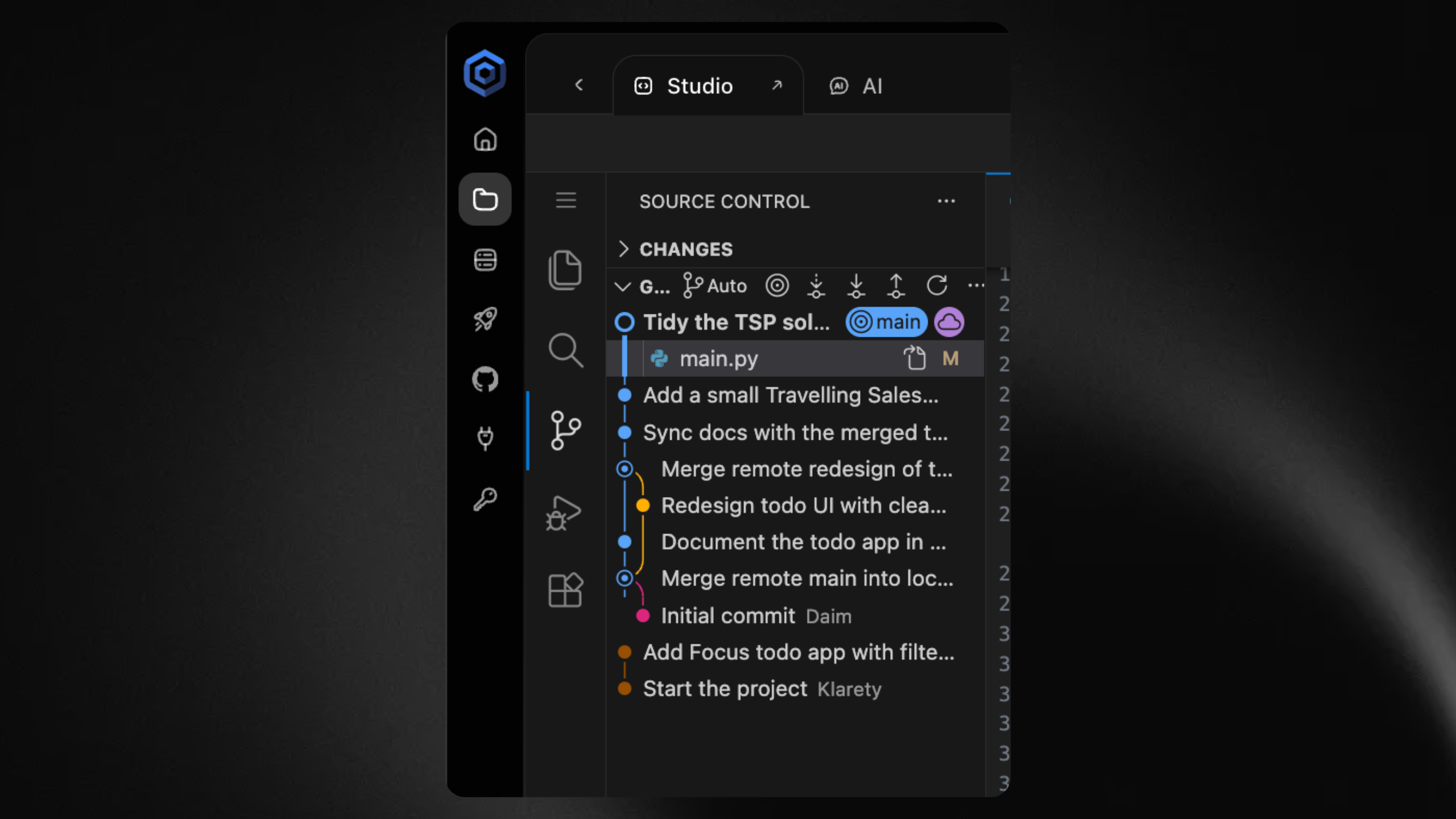
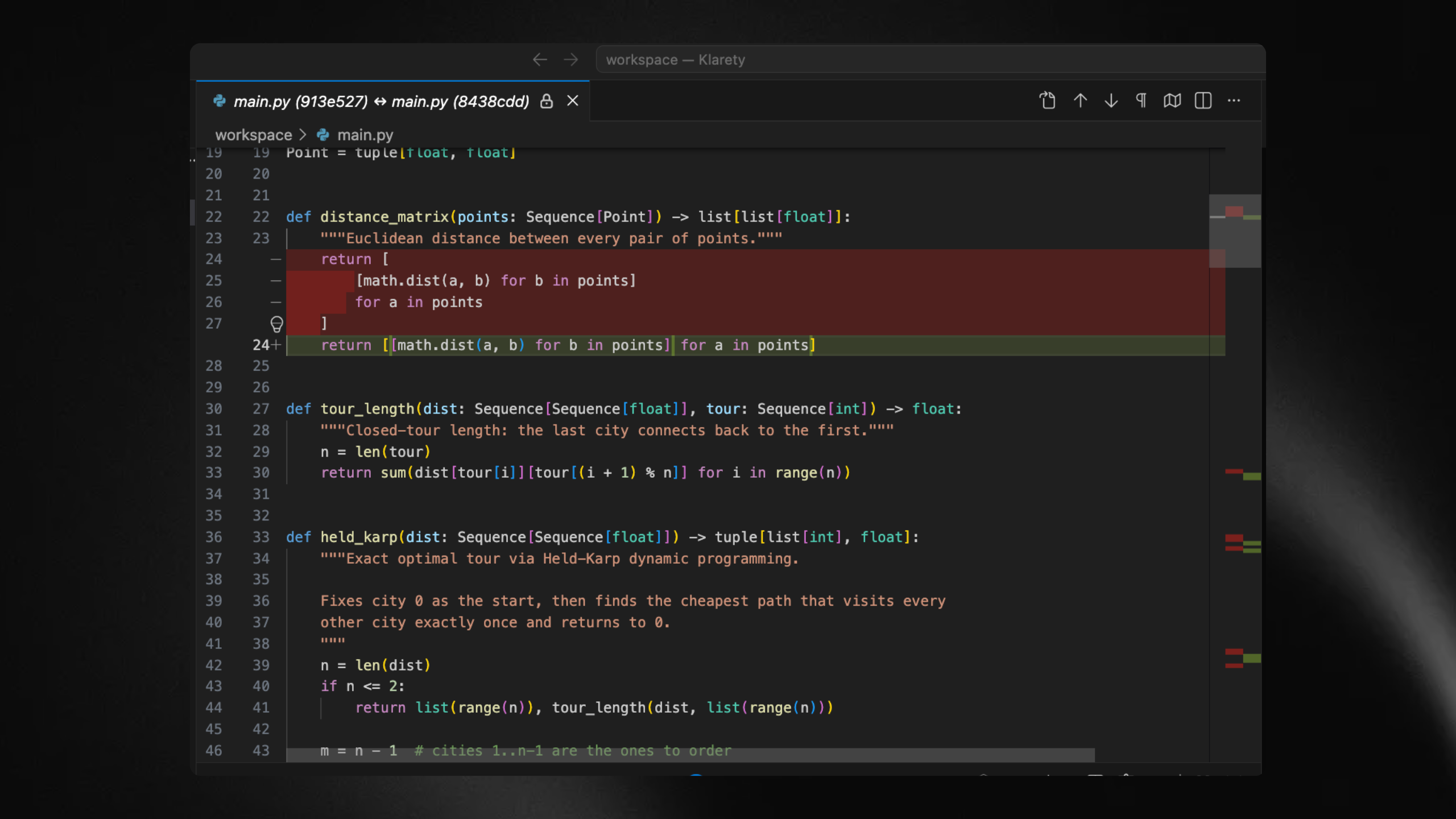
Commits you or the AI make in the Studio are pushed to the linked repository. You can review changes side by side before they go live.
Pushes to the deploy branch start a deploy. See Deploy your app.
Change the repository
In the project's Settings, Danger zone, select Change repository. The project then saves to and goes live from the new one. The Studio opens it on its next start and keeps the old work in its own branches. For a different app, create a new project.
Disconnect GitHub
Open GitHub on Connectors, open the options next to Connected and select Disconnect, then Disconnect GitHub.
What disconnecting stops
The Klarety app is removed from your GitHub organization. Until it is reconnected, pushes stop deploying and Studios cannot push to GitHub. Your repositories and code are not touched.
Troubleshooting
| What you see | What to do |
|---|---|
| Ask an admin to connect | You are not an owner or admin. Ask one to connect GitHub. |
| GitHub is not connected in project settings | A workspace admin connects it once for every project. |
| GitHub could not be reached. | Try again in a moment. |
| A push does not deploy | Check the project's Deploys from branch and that GitHub is still Connected. |