

Turn a spreadsheet into a table
Upload a spreadsheet or CSV and get a table you can query, update and share.
Open Add data, choose Turn a spreadsheet into a table, upload the file, check the columns and select Import. Later files can add rows, update rows by key or replace all rows.
What you will build
A in , your database, made from a spreadsheet or CSV file. You will describe its columns, add a check that keeps bad rows out, and load a second file. The original file is kept in a folder too.
Before you start
- A spreadsheet (Excel) or CSV file with a header row.
- Access to add data. Owners and admins always have it; members need it given in Data access.
- For developers: the installed and an . See the Quickstart.
Steps
Open Add data
Go to Data and choose Turn a spreadsheet into a table.
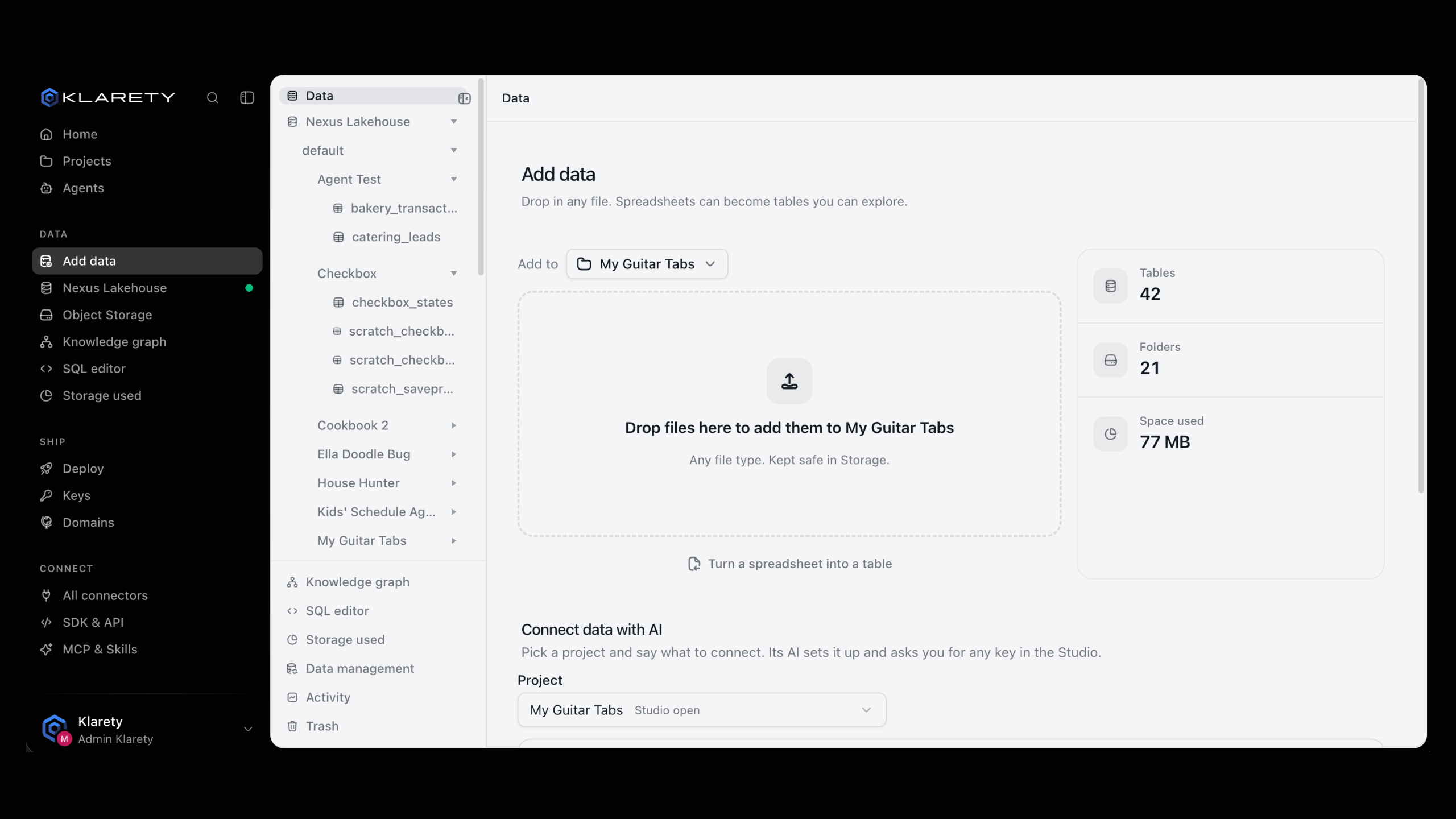
Name the table and import
Check the Table name. If it already exists, choose Add rows or Replace rows. Select Import, then Open table.
Describe the columns
Add a description to each column that is not obvious ("What this column holds"). The AI in Studios and agents reads them, so good ones give better answers.
Add a data check
Open Data checks and select Add check, for example order_id is never empty, or amount is between 0 and 100000. Rows that fail are set aside when data is added.
Load the next file
For a new version of the spreadsheet, open the table, choose Add data from a file and pick how it loads:
- Add rows: append the new rows.
- Update rows by key: match rows on a column such as
order_id, update the ones that exist and add the rest. - Replace all rows: the file becomes the whole table.
Load the file
from klarety import Nexus

nx = Nexus.connect()
run = nx.ingest("orders.csv", into="orders", schema="default")
print(run.run_id, run.state)
Preview before loading (optional)
ingest_preview shows what Klarety found in the file without loading anything:
print(nx.ingest_preview("orders.csv", into="orders"))Wait for it to finish
status = nx.ingest_status(run.run_id)
print(status.state)
Load the next file by key
nx.ingest("orders_week2.csv", into="orders", mode="upsert", key=["order_id"])mode is auto, append, upsert or replace. A file already loaded into a table is skipped unless you pass force=True.
Or use the command line
klarety ingest orders.csv --into orders
klarety ingest orders_week2.csv --into orders --mode upsert --key order_id
Replace all rows overwrites the table
The file becomes the whole table. If you choose it by mistake, use the table's History to go back.
Check that it worked
Open the table from Nexus Lakehouse; the header shows its column and row counts. Select Open in SQL editor and run:
SELECT COUNT(*) FROM ordersprint(nx.sql("SELECT COUNT(*) AS n FROM orders").rows)The count matches the rows in your file, less any rows a check set aside. The table's History shows each load, with the rows it added.
If something goes wrong
Next steps
- Ask your data a question: query the table you just made.
- Tables: everything you can do with a table.
- Add data: other ways to bring data in.
- Send a daily report: summarise the table every morning.