Codex
Use your own Codex subscription in a Studio.
Use your own Codex subscription in every Klarety . It works on your code next to Klarety AI and reaches your data through the built-in Klarety MCP, with your own access. Sign in once and it is ready in every .
Before you start
- You need your own Codex subscription. Use it as Codex's own terms allow.
- Your must allow Codex. An Owner or Admin controls this in SettingsWorkspace under AI tools. If it is not allowed, the Studio says "Your workspace does not allow Codex."
- You need a project you can open. See Create a project.
Connect Codex
Open a Studio
Open the project and start its Studio. Wait until it shows Running.
Open an AI tool
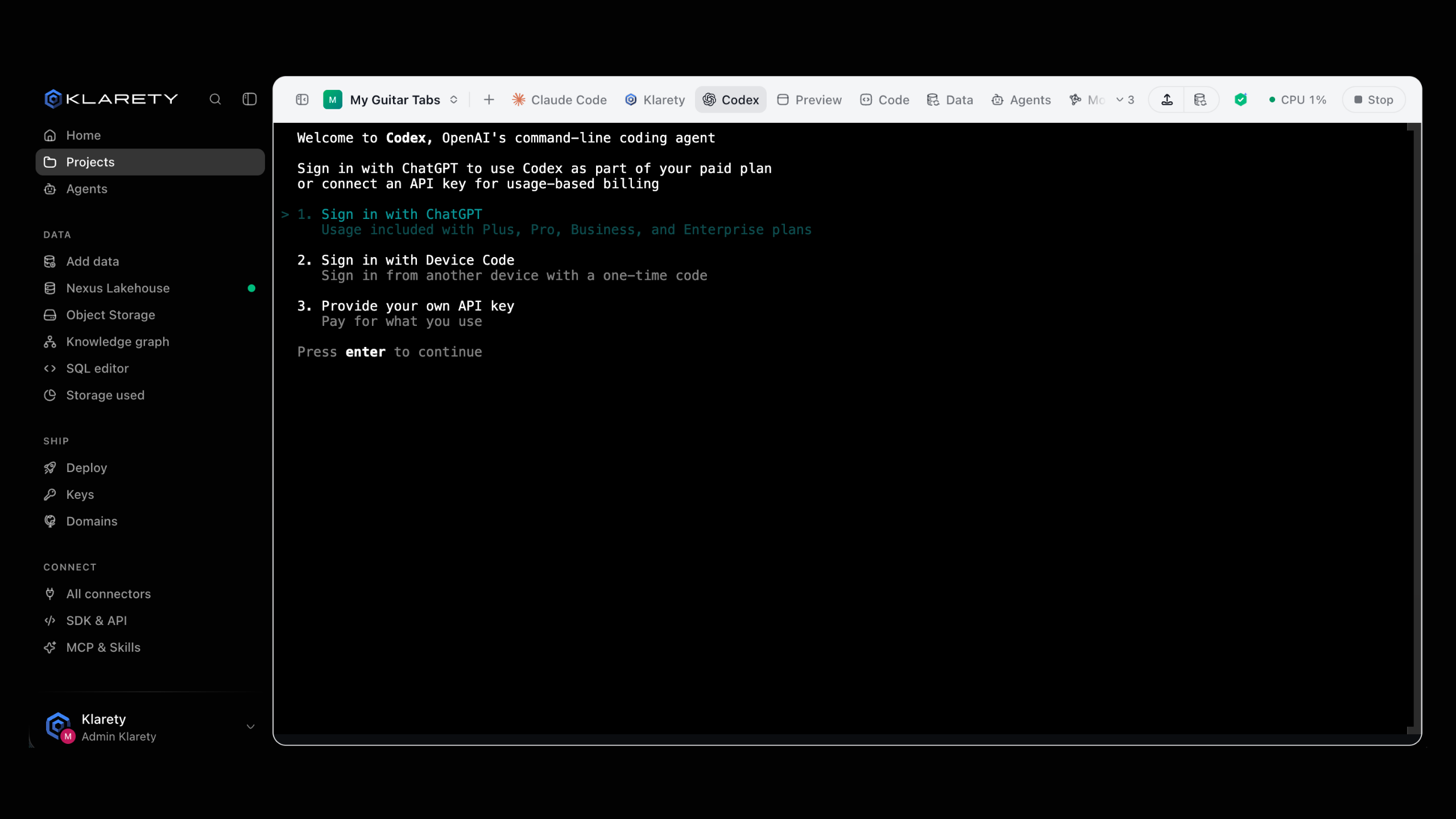
In the AI tab, select + (Open an AI tool). Until you sign in, Codex shows Sign in beside its name. Choose Codex.
Sign in in your own terminal
Codex starts in your own terminal in the Studio with its usual sign-in. Sign in with your own Codex account. Nobody else in the Studio sees or types in this terminal.
Start working
Once signed in, ask Codex to do something in your project.
Or start from Connectors: find Codex under AI harness, select Connect, and pick a project under Sign in from. Klarety opens that Studio with Codex ready to sign in.
Check that it worked
- In Connectors, Codex shows Connected, with "works in all your projects".
- While Codex runs in one of your Studios, its page shows your Plan usage (how much of your Codex plan is used, and when it resets). Only you see it, and it comes from Codex itself, never your account.
- Open Codex in another project's Studio: it starts without asking you to sign in.
Use it in another project
Codex runs in one of your projects at a time. If it is open in another of your projects, the Studio says "Codex is open in another of your projects. Move it here to use it in this one." Move here closes it there and opens it here, still signed in.
If you turned Codex off for one project, the Studio says so and offers Turn on for this project.
Close, reopen and continue
Closing the Codex tab does not stop it. Open it again from + to pick up where it left off. Earlier conversations are under AI sessions in the side panel, where you can Continue one.
Disconnect
Disconnect applies everywhere
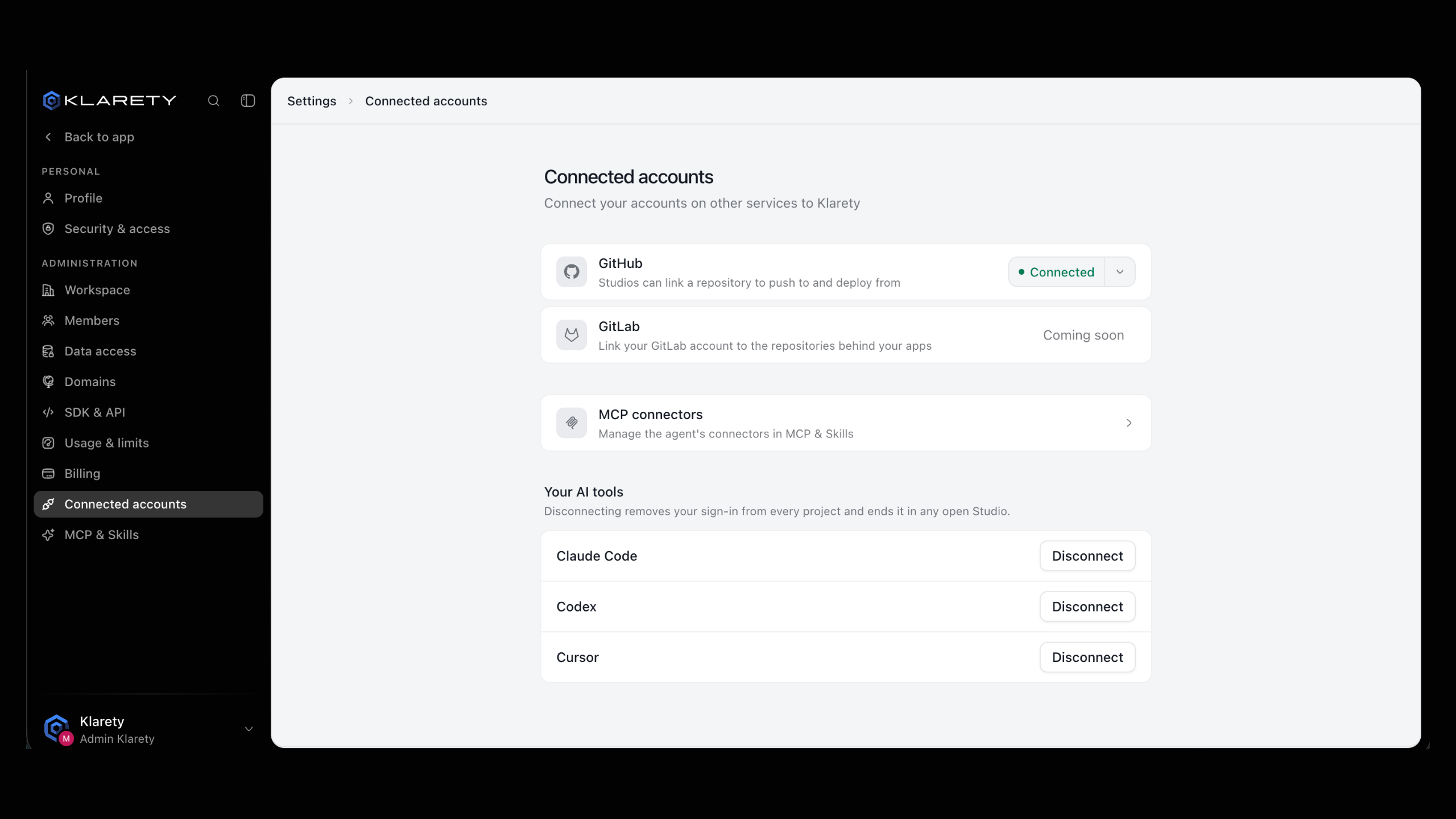
Disconnecting removes your sign-in from every project and ends it in any open Studio.
Go to SettingsConnected accounts, find Codex under Your AI tools, and select Disconnect. Your sign-in is deleted from Klarety. You can connect again any time.