

Connect your first data source
Bring data in from a tool you already use, with your Studio's AI doing the setup.
Open Connectors, pick the tool, choose a project and send the request. Your Studio's AI drafts the connection; you finish it with your own key. Then Test it and load data into a table.
What you will build
A tested from a to a tool such as Google Sheets, PostgreSQL or Amazon S3, and a in filled from it.
GitHub is the one connector you connect directly, from Settings. See GitHub.
Before you start
- A project with a you can open. See Your first project.
- An account on the tool you want to connect, and a key or sign-in for it.
- The project's Internet access must not be off, or connections do not work.
Your keys stay locked away
Keys you give a connection are encrypted. Not even the AI can read them.
Steps
Find the connector
Go to Connectors and search for your tool. Open it to see what it does and what you need.
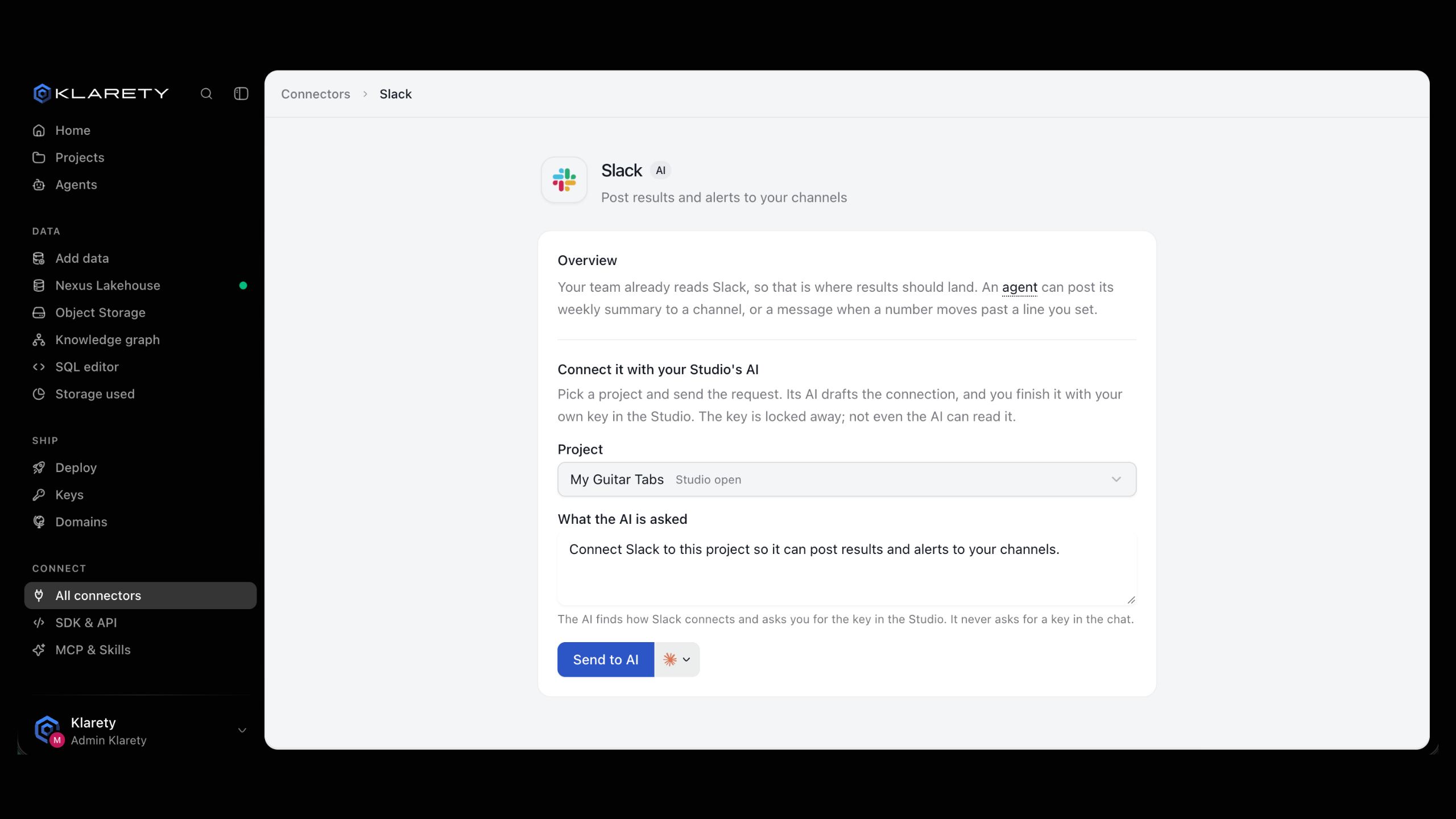
Ask your Studio's AI to connect it
Under Connect it with your Studio's AI, pick the project and send the request. Or, inside a project, open its connections, describe what you want (for example "my Stripe account") and select Ask AI to connect.
If the Studio is closed, the AI reads the request when it opens.
Finish it with your key in the Studio
The AI drafts the connection and tells you where to finish it. Paste your own key or sign in where it asks.
Test the connection
In the project's connections, select Test. A working connection shows when it was last used. If it fails, select Reconnect and re-enter the key.
Load data into a table
Ask the AI in the Studio to load what you need, for example:
Load the last 90 days of invoices from Stripe into a table called invoices, and keep it up to date every night.
Then open Data to see the new table.
Check that it worked
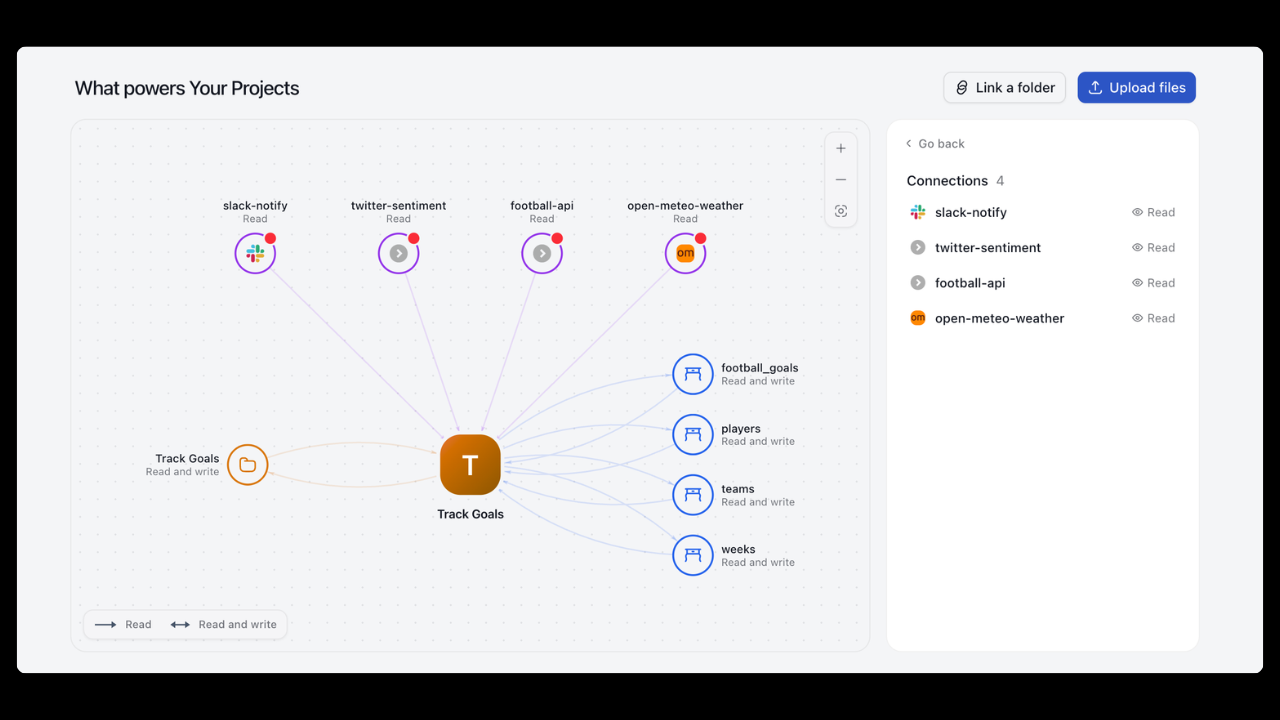
- The connection appears in the project's connections, with the date it was last used.
- Test succeeds.
- The new table appears in Nexus Lakehouse with rows.
Common variations
- Receive events with a webhook. For services that push events: in the project's connections select Add webhook, name it, and give the service the address Klarety shows. Paste the service's signing secret so Klarety can check each event is real.
- Share a connection. A connection can belong to the workspace instead of one project. Give a teammate access in Data access.
- Pause a connection. Pause stops using it; Resume starts again. Remove deletes the key, and every Studio using it stops reaching the service.
If something goes wrong
Next steps
- Connectors: every tool you can connect.
- PostgreSQL, Amazon S3 and Google Sheets: step-by-step setup.
- Build your first agent: act on the data you brought in.