

Build your first agent
Describe a task in plain words, try it, and let an agent do it on its own.
Open Agents, select New agent, pick a project and describe the task. The AI builds a draft. Select Try it, check the run, then a workspace admin selects Go live. It then runs on its own and asks before changing anything important.
What you will build
An that reads new rows in a , uses AI to label each one, asks you before saving, and writes the labels back. You will try the draft, read its step by step, and take it live.
Before you start
- A you can edit. Agents work inside a project. See Your first project.
- A table the agent can read. See Turn a spreadsheet into a table.
- To take it live: the Owner or Admin role. Anyone who can edit the project can build and try the draft.
A live agent spends credits
A live agent runs on its own and spends the workspace's , so only owners and admins take agents live. Try it never goes live.
Steps
Start a new agent
Go to Agents and select New agent. Pick the project it works in.
Describe the task in plain words
Say what it should do, when, and what it should ask you. For example:
Every morning, read yesterday's new rows in the support_tickets table. Give each ticket a priority from 1 to 5 based on its text. Ask me before saving, then write the priority into a ticket_priority column.
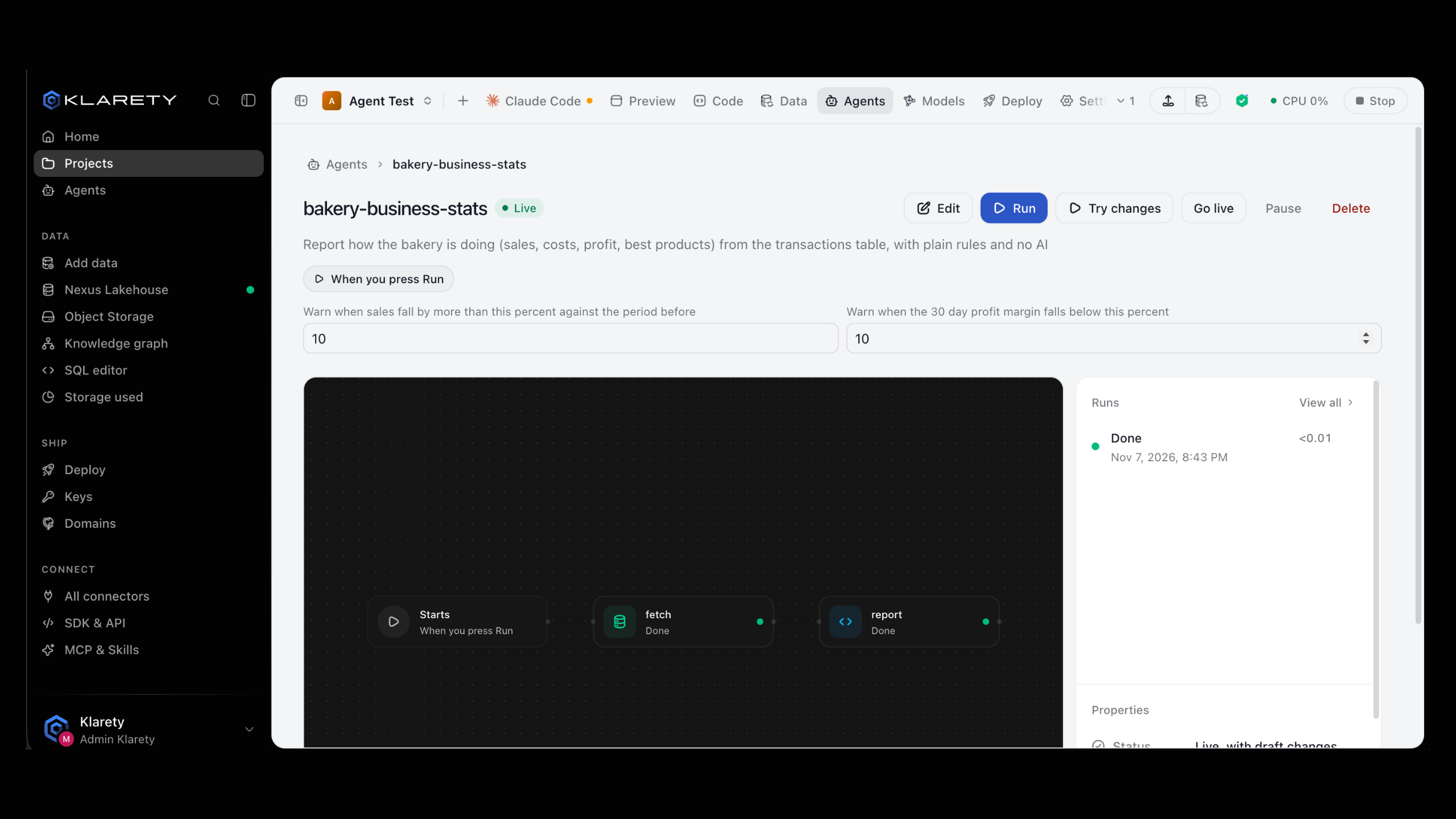
The AI builds the agent as a draft. You see its steps: when it Starts, what each step Does, what it Uses and where it Saves to.
Adjust the steps
Click a step to change when it starts (a schedule, when files arrive, when rows load, when a webhook calls, or only when started), the query it runs, or the AI's instruction. Or describe the change in words and let the AI make it.
Try the draft
Select Try it. The draft runs once, now; nothing goes live.
Follow the run
Open the run from Runs. Each step shows how it went, its log and its files. At the step that asks you, choose Yes, continue to save, or No, stop here. The Result shows what the run produced and what it cost.
If a step failed, fix it and choose Run again from here on it. Earlier steps are reused, not run again.
Take it live
When the draft does what you want, a workspace admin selects Go live and confirms. If you are not an admin, ask one.
Check that it worked
- The agent's page shows it as live, with when it starts next.
- On Agents, the board shows its runs today and the credits they used.
- After a run, the table has the new column filled in.
Common variations
- Start from a template. Select Browse templates for ready-made agents, such as a daily summary of a table or copying a web API into a table. See Templates and Send a daily report.
- Change a live agent. Edit it: your changes stay a draft (Live, with draft changes) until you try them and take them live. Earlier versions are kept, and Make live again restores one.
- Stop it for a while. Select Pause. It stops starting; runs in progress finish. Go live again any time.
- Stop one run. Open the run and select Stop.
If something goes wrong
Next steps
- Send a daily report: a scheduled agent from a template.
- Create an agent: every option in the agent builder.
- Runs: reading, stopping and re-running runs.
- Go live: who can take agents live and what it costs.